 Basis
BasisConcepts
Basis uses a single unified register for both Fixed Assets (PPE — property, plant & equipment) and Intangible Assets (software, patents, goodwill, trademarks). Both use straight-line depreciation/amortization.
| Term | Definition |
|---|---|
| Acquisition Cost | The full cost to bring the asset into service (purchase price + installation + freight, etc.). |
| Salvage Value | Estimated residual value at end of useful life. Intangibles are typically 0. |
| Useful Life | Total months the asset will be depreciated. E.g. 5 years = 60 months. |
| Monthly Depreciation | (Acquisition Cost − Salvage Value) ÷ Useful Life (months) |
| Accumulated Depreciation | Sum of all posted depreciation entries. Shown as a contra-asset on the Balance Sheet. |
| Net Book Value (NBV) | Acquisition Cost − Accumulated Depreciation. |
| Period | One calendar month (always the 1st of the month internally). |
Required GL Accounts
Each asset requires three GL accounts. Set these up in your Chart of Accounts before registering assets.
| Account | Normal Balance | Sub-Type (FA) | Sub-Type (IA) | Example Name |
|---|---|---|---|---|
| Asset Account | Debit | Fixed Asset | Intangible Asset | Property, Plant & Equipment / Software |
| Accum. Depreciation | Credit (contra) | Other Asset | Other Asset | Accumulated Depreciation — Vehicles |
| Depreciation Expense | Debit | Operating Expense | Operating Expense | Depreciation Expense / Amortization Expense |
When depreciation is posted, Basis creates a Journal Entry:
One batch voucher is created per "Post All" click covering all assets with unposted depreciation in that period.
Registering an Asset
Go to Fixed Assets → Asset Register, then click Add Asset.
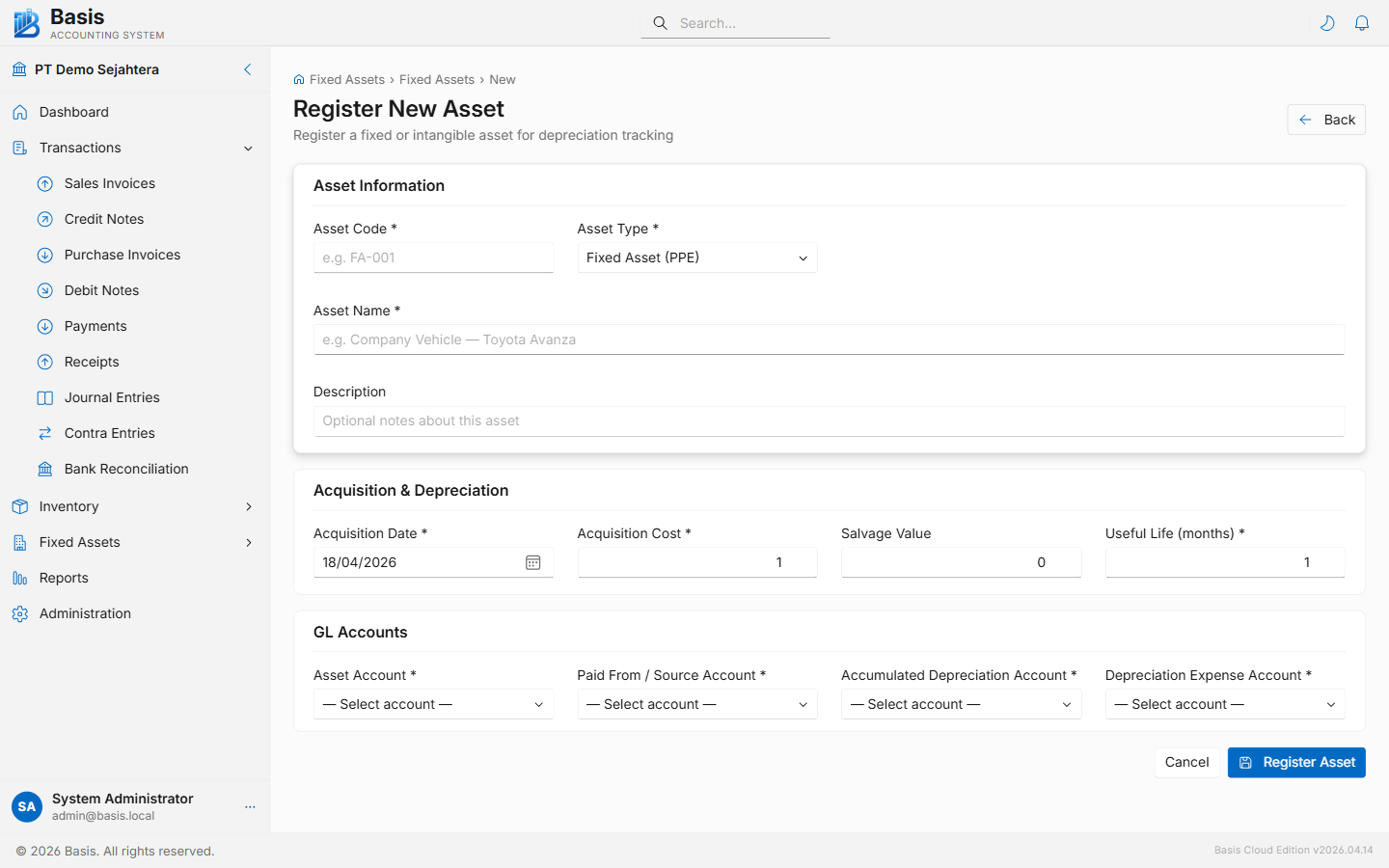
Asset Information
| Field | Status | Notes |
|---|---|---|
| Asset Code | Required | Unique identifier. Read-only after save. Example: FA-001, IA-SW-01. |
| Asset Type | Required | Fixed Asset (PPE) or Intangible Asset. Determines which GL account sub-types are shown. |
| Asset Name | Required | Descriptive name, e.g. "Company Vehicle — Toyota Avanza B 1234 XY". |
| Description | Optional | Additional notes — serial number, location, purchase reference, etc. |
Acquisition & Depreciation
| Field | Status | Notes |
|---|---|---|
| Acquisition Date | Required | Date the asset was put in service. Determines the first depreciation period. |
| Acquisition Cost | Required | Full cost in base currency. Read-only once depreciation has been posted. |
| Salvage Value | Optional | Residual value at end of life. Leave 0 for intangibles. Must be less than Acquisition Cost. |
| Useful Life (months) | Required | E.g. 60 for a 5-year asset. Shown as years in the summary. Read-only once depreciation posted. |
A preview below the form shows the computed Monthly Depreciation as you type.
GL Accounts
| Field | Notes |
|---|---|
| Asset Account | The balance sheet account where the asset's cost is recorded (sub-type: Fixed Asset or Intangible Asset). |
| Accumulated Depreciation Account | Contra-asset account. Grows with each posted period (sub-type: Other Asset). |
| Depreciation Expense Account | P&L expense account charged each period (sub-type: Operating Expense or Other Expense). |
Viewing the Depreciation Schedule
Click any asset in the list to open its Detail page. The full depreciation schedule is shown at the bottom — one row per month for the entire useful life.
| Column | Meaning |
|---|---|
| # | Period number (1 = first month of useful life). |
| Period | Month and year (e.g. "Apr 2025"). |
| Opening NBV | Net book value at start of the period. |
| Depreciation | Amount charged this period (constant for straight-line). |
| Closing NBV | Opening NBV − Depreciation. |
| Status | Posted — JE created. Pending — next period due. — future period. |
| Voucher | Link to the Journal Entry voucher in which this period was posted. |
Depreciation Worksheet & Posting
Go to Fixed Assets → Depreciation Worksheet to run monthly depreciation for all assets in one step.
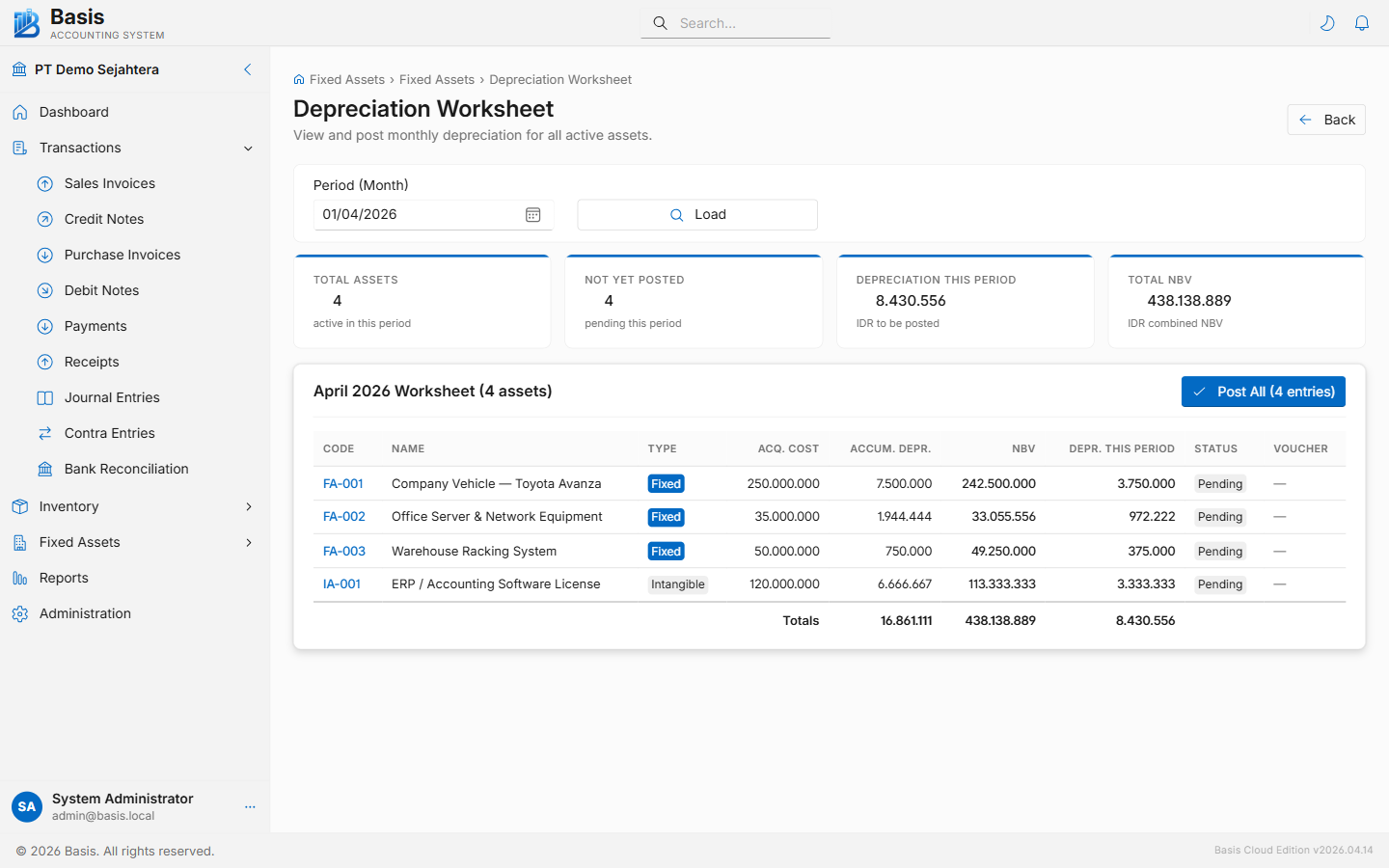
- Select the Period (month/year) you want to post.
- Click Load. The worksheet shows all active assets with their current NBV and the depreciation amount due this period.
- Review the summary cards: Not Yet Posted count and Depreciation This Period total.
- Click Post All to create a single batch Journal Entry covering all unposted assets.
- The Voucher column updates with a link to the created JE. Assets that reach NBV = Salvage Value are automatically marked Fully Depreciated.
What happens during "Post All"
- One Journal Entry voucher is created containing Dr/Cr pairs for every unposted asset in that period.
- Each
FixedAssetDepreciationrecord is stamped with the voucher ID andPostedAttimestamp. - Assets whose NBV hits the salvage value are automatically set to Fully Depreciated status.
- The batch voucher appears in Journals and is included in all reports (P&L, Balance Sheet, Trial Balance).
- If the period is locked, posting is blocked — unlock the period first.
Opening Balance — Existing Assets
If your business already owns assets with accumulated depreciation before you start using Basis, you have two options:
Option A — Register with original acquisition date (recommended)
This is the preferred method when the asset history is not too old (e.g. 1–2 years).
- Register the asset with its original Acquisition Date and original Acquisition Cost as described above.
- Go to the Depreciation Worksheet. Set the period to the first month the asset was put in service and click Post All. Then advance month by month until you reach the current period.
- Each monthly post creates a Journal Entry that builds up the accumulated depreciation balance correctly in the GL.
- The asset detail page will show the correct NBV after all historical periods are posted.
This option gives you a complete, auditable history. If there are many assets, post several months at once — the worksheet handles all active assets per period.
Option B — Enter at current NBV (for old assets with long history)
Use this when retroactively posting 5+ years of history is impractical.
-
Create a manual Journal Entry to record the opening balance of accumulated depreciation as of your go-live date:
Use the accumulated depreciation amount as of your opening date. Narrate it as "Opening balance — accumulated depreciation [Asset Code]".AccountDebitCreditOpening Balance EquityIDR X,XXX—Accumulated Depreciation — [Asset]—IDR X,XXX
- Register the asset with Acquisition Date = your go-live month and Acquisition Cost = current NBV (not the original cost). Set Salvage Value = 0 and Useful Life = remaining months.
- From now on, run the Depreciation Worksheet monthly as normal. Each post adds the remaining monthly depreciation to both the GL and the asset register.
Asset Disposal
When an asset is sold, scrapped, or written off, the asset register needs to be updated and a Journal Entry must be created to remove the asset from the books.
Steps
- Post any remaining depreciation up to the disposal month via the Depreciation Worksheet, so accumulated depreciation is current.
- Create a manual Journal Entry to derecognize the asset:
AccountDebitCreditAccumulated DepreciationAccum. amount—Cash / Bank (if sold)Sale proceeds—Loss on Disposal (if any)Balancing—Asset Account (cost)—Original costGain on Disposal (if any)—Balancing
- Edit the asset in Basis and set its status to Disposed. A disposed asset no longer appears in the Depreciation Worksheet.
FAQ
Can I edit an asset's cost or useful life after posting depreciation?
No. Acquisition Cost and Useful Life become read-only once any depreciation has been posted. This protects the integrity of already-created Journal Entry vouchers. If a correction is genuinely needed, delete the depreciation JE vouchers via Journals, which will reset the posted periods, then edit the asset and re-post.
What if I forget to post depreciation for a month?
Simply go to the Depreciation Worksheet, select the missed month, and click Post All. You can post periods out of order or catch up multiple months sequentially. Each period creates its own batch voucher.
Can I post depreciation for part of a month (pro-rata)?
Not directly — Basis uses full-month straight-line. For assets acquired mid-month, a common practice is to start depreciation from the first day of the following month and set the Acquisition Date to the first of that month.
Does Basis support declining balance or units-of-production methods?
Not in the current version. Only straight-line is supported. Sum-of-digits and other methods are on the roadmap.
Can one asset have different depreciation rates per period?
No. The monthly amount is fixed at (Cost − Salvage) ÷ Life and is the same for every period.
Where does posted depreciation appear in reports?
The batch Journal Entry posts to standard GL accounts, so it flows through automatically:
- Profit & Loss — Depreciation Expense appears in the period it was posted.
- Balance Sheet — Asset Account (debit) and Accumulated Depreciation (credit) both appear under non-current assets, showing the current NBV.
- Trial Balance — Both accounts appear with their running balances.
- General Ledger — Each posting appears as a line in the GL report for the relevant accounts.