 Basis
Basis
Creating a Sales Invoice
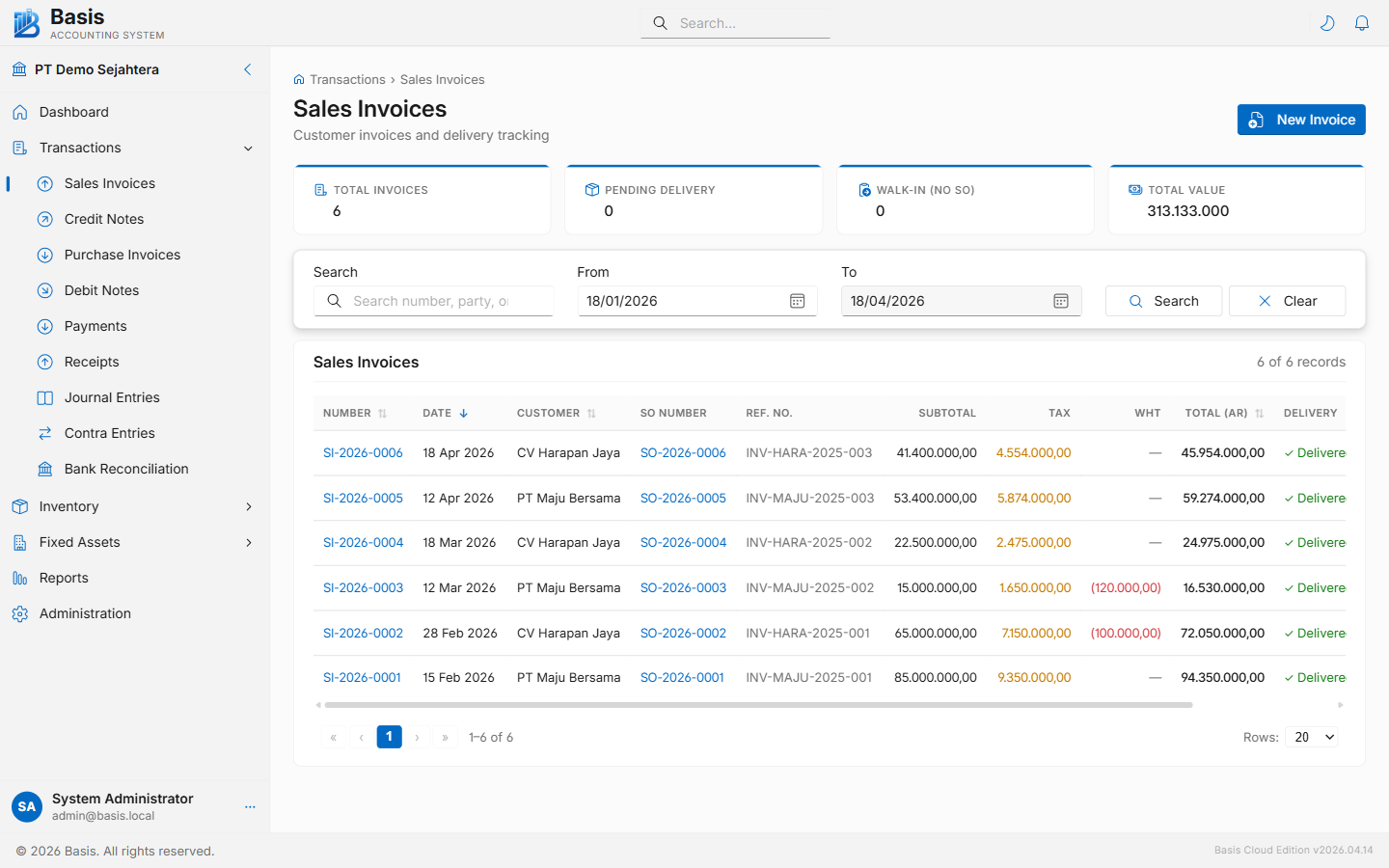
Go to Transactions → Sales Invoices, then click New.
- Select the Customer. The customer's current AR balance appears. Leave blank for a walk-in sale.
- Set the Invoice Date and optionally a Due Date for payment terms.
- If linked to a Sales Order, select it from the Sales Order dropdown — lines auto-fill from the SO.
- Fill in Reference with the customer's PO number or your internal ref (optional).
- Add line items: select an Item or enter free text, then set Qty, Unit, and Unit Price. Tax applies automatically from the item's tax category.
- Click Save. The invoice posts immediately to the GL.
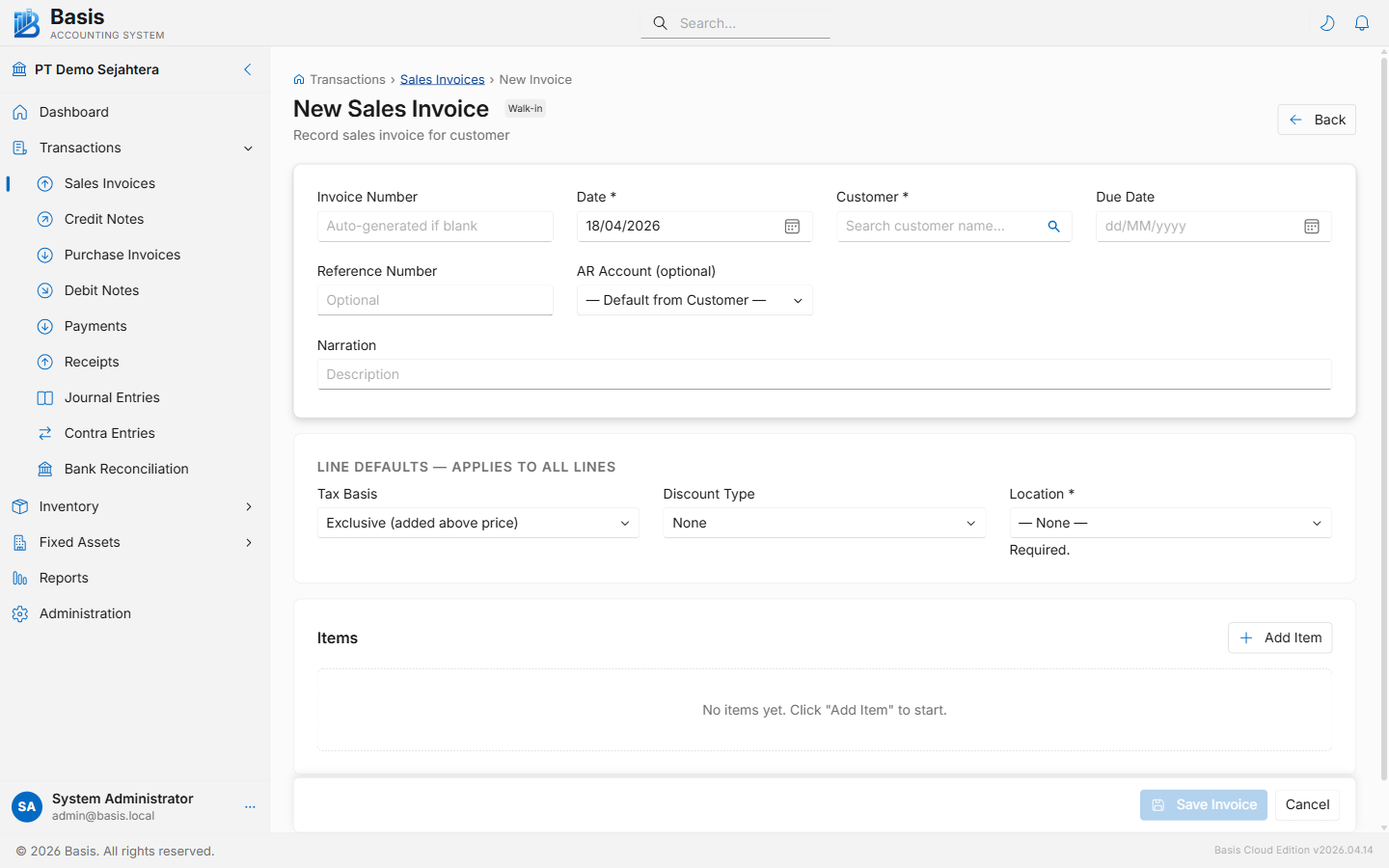
Header fields
| Field | Status | Notes |
|---|---|---|
| Invoice Number | Auto | Auto-generated from the voucher number series. Can be overridden manually. |
| Date | Required | Invoice date. Blocked if the accounting period is locked. |
| Customer | Optional | Select from Parties. Shows current AR balance. Leave blank for walk-in sales. |
| Due Date | Optional | Payment due date. Used in the AR Aging report. |
| Sales Order | Optional | Links to an open SO for the selected customer. Lines auto-fill from the SO. |
| Reference | Optional | Customer PO number or any internal reference code. |
| AR Account | Optional | Defaults to the customer's AR account. Override if needed. |
| Salesman | Optional | Visible when Salesman feature is enabled. Used in the Commission Report. |
| Currency | Optional | Visible when Multi-Currency is enabled. Locked if linked to an SO. |
| Narration | Optional | Internal memo — not printed on the invoice output. |
Line item fields
| Field | Status | Notes |
|---|---|---|
| Item | Optional | Select from Items list. Auto-fills description, unit, and default price. |
| Description | Required | Free text if no item selected; auto-populated from item name if selected. |
| Qty | Required | Quantity sold. Reduces inventory balance for stock-tracked items. |
| Unit | Optional | Unit of measure. Auto from item definition. |
| Unit Price | Required | Price per unit. Defaults from the item's selling price. |
| Discount % | Optional | Line-level percentage discount applied before tax. |
| Tax | Optional | Auto from item's tax category (e.g., PPN 11%). Can be overridden per line. |
| WHT | Optional | Withholding tax configuration, if applicable to the line. |
Walk-in sale (no customer record)
Leave Customer blank. Add lines normally. The invoice posts to the default Sales Revenue and AR accounts without a party ledger entry. Useful for cash counter sales where individual customer tracking is not required.
Invoicing from a Sales Order
Select the customer first, then choose the Sales Order from the dropdown (only unfully-invoiced SOs for that customer appear). Lines auto-fill from the SO with locked prices and currency. Adjust quantities down for partial invoicing — the remaining balance stays on the SO. The SO status updates to Partially Invoiced or Fully Invoiced automatically.
Editing and Deleting
Edit: Open the invoice → click Edit. The original is archived (reason: Edited), then the invoice is recreated with your changes. The Invoice Number is preserved.
Delete: Open the invoice → click Delete, enter a reason. The invoice is archived (reason: Deleted) then permanently removed. The GL entries are reversed.
Preview and Printing
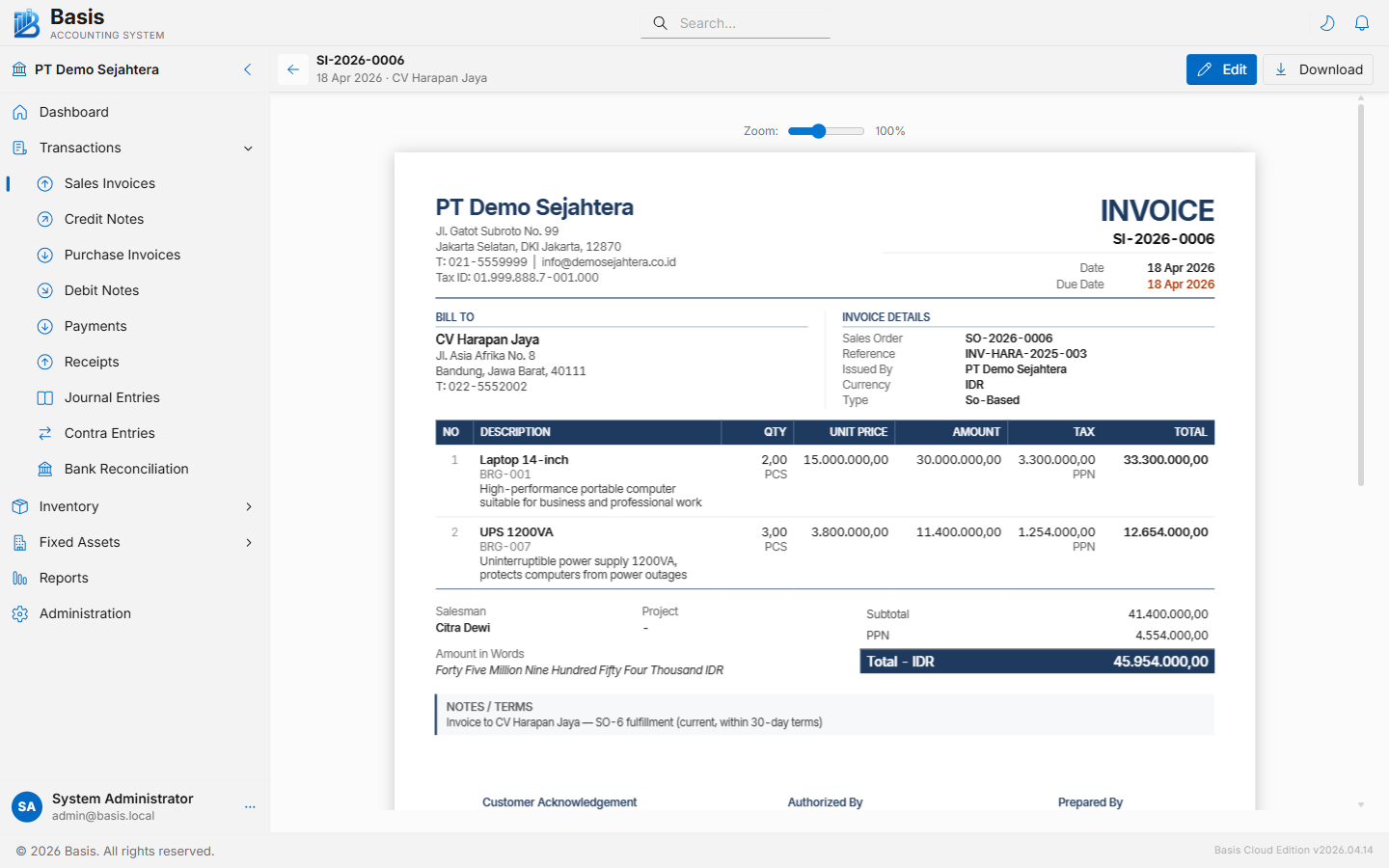
Open any invoice and click Preview to open the print-ready view. From the preview you can:
- Print directly from the browser
- Download as PDF
- Email to the customer (requires Email Settings to be configured)
- Generate a Customer Portal link for the customer to view and comment online
GL Impact
| Account | Debit | Credit |
|---|---|---|
| Accounts Receivable (AR) | Invoice total incl. tax | — |
| Sales Revenue (per line) | — | Line amount excl. tax |
| Tax Payable (PPN Output) | — | Tax amount |
| WHT Receivable (if WHT applied) | WHT amount | — |
| Inventory / COGS (stock items) | COGS at WAC | — |
| Inventory Asset (stock items) | — | Inventory value at WAC |
Related
- Credit Notes — reverse or correct a Sales Invoice
- Receipts — record payment received against an invoice
- Sales Orders — create the SO before invoicing
- AR Aging Report — see outstanding receivables by age bucket
- Customer Portal — let customers view their invoices online