 Basis
Basis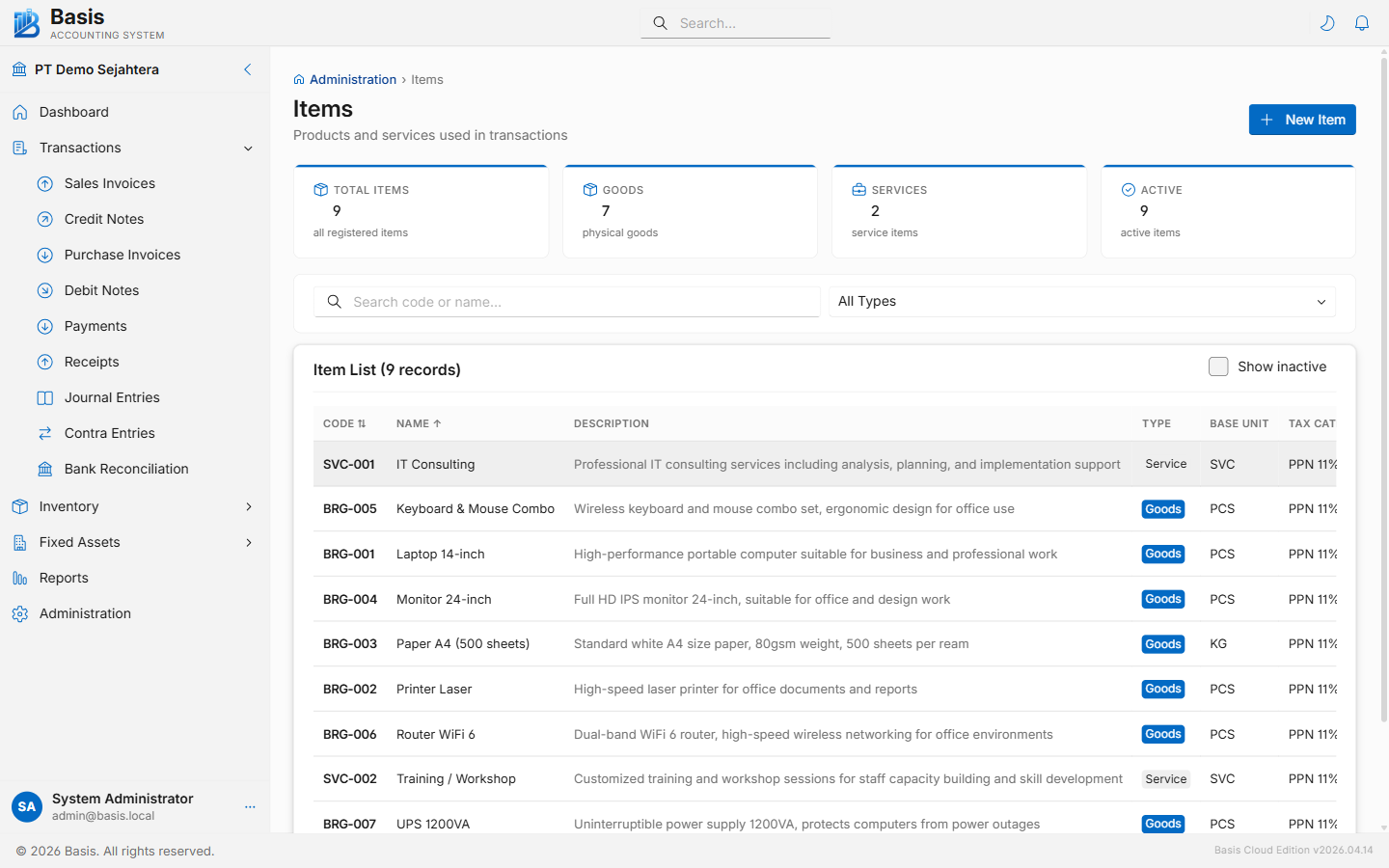
Adding an Item
Go to Master Data → Items, then click New.
- Enter a unique Code and Name for the item. The code cannot be changed after creation.
- Select the Type: Goods (physical product — stock-tracked) or Service (non-inventory). Type cannot be changed after creation.
- Select the Base Unit of measure (e.g., PCS, KG, BOX). Cannot change after creation.
- Set the Tax Category for default tax on transactions. For Service items, optionally set a WHT Configuration.
- Assign a Category for grouping in reports.
- Set default prices in the Pricing section: Selling Price and Purchase Price. For multiple price tiers, add entries under Price Levels.
- Set GL Accounts for Sales Revenue, Purchase/Expense, Inventory Asset (Goods only), and COGS (Goods only). These auto-fill from system defaults if left blank.
- For Goods, set Minimum Stock to enable the Low Stock report alert.
- Click Save.
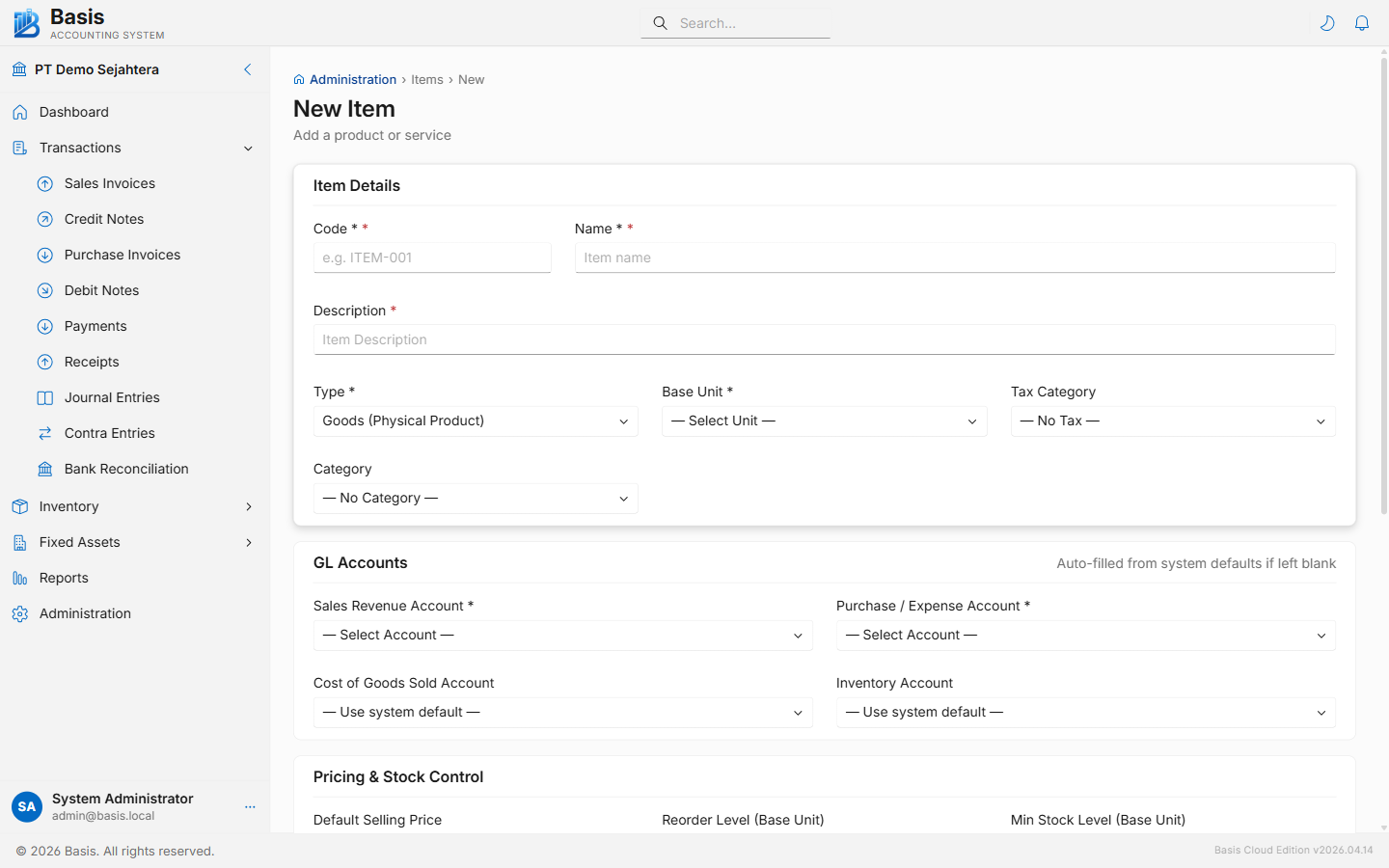
Item Details fields
| Field | Status | Notes |
|---|---|---|
| Code | Required | Unique identifier. Immutable after creation. |
| Name | Required | Display name shown on invoices and reports. |
| Description | Optional | Default line description on transaction forms. Can be overridden per line. |
| Type | Required | Goods or Service. Immutable after creation. Goods items track stock; Services do not. |
| Base Unit | Required | The fundamental unit. Immutable after creation. Additional unit conversions can be added separately. |
| Tax Category | Optional | Default tax applied on sales/purchase lines. Can be overridden per transaction line. |
| WHT Configuration | Optional | Service items only. Withholding tax rate applied on purchase lines. |
| Category | Optional | Item category for reporting and filtering. |
| Minimum Stock | Optional | Goods only. Triggers the Low Stock report when current stock falls to or below this level. |
| Active | Optional | Inactive items are hidden from transaction search but their history is retained. |
GL Accounts fields
| Field | Notes |
|---|---|
| Sales Revenue Account | Credit account on Sales Invoice lines. Auto-fills from system default if blank. |
| Purchase / Expense Account | Debit account on Purchase Invoice lines. Auto-fills from system default if blank. |
| Inventory Asset Account | Goods only. Asset account tracking stock value (WAC-based). |
| COGS Account | Goods only. Debit account when goods are sold (COGS entry on Sales Invoice). |
Item Categories
Go to Master Data → Item Categories to create groupings (e.g., "Electronics", "Consumables"). Categories are used as filters on the Items list and in Sales/Purchase Detail Reports.
Unit Conversions
After creating an item, you can add additional units of measure (e.g., a BOX unit = 12 PCS). On transaction lines, users can select any registered unit and the quantity converts to the base unit automatically for stock tracking.
Related
- Units — define units of measure used by items
- Tax Categories — tax rates linked to items
- Item Sales / Item Purchase Reports — per-item analysis
- Low Stock Report — items below minimum stock level