 Basis
Basis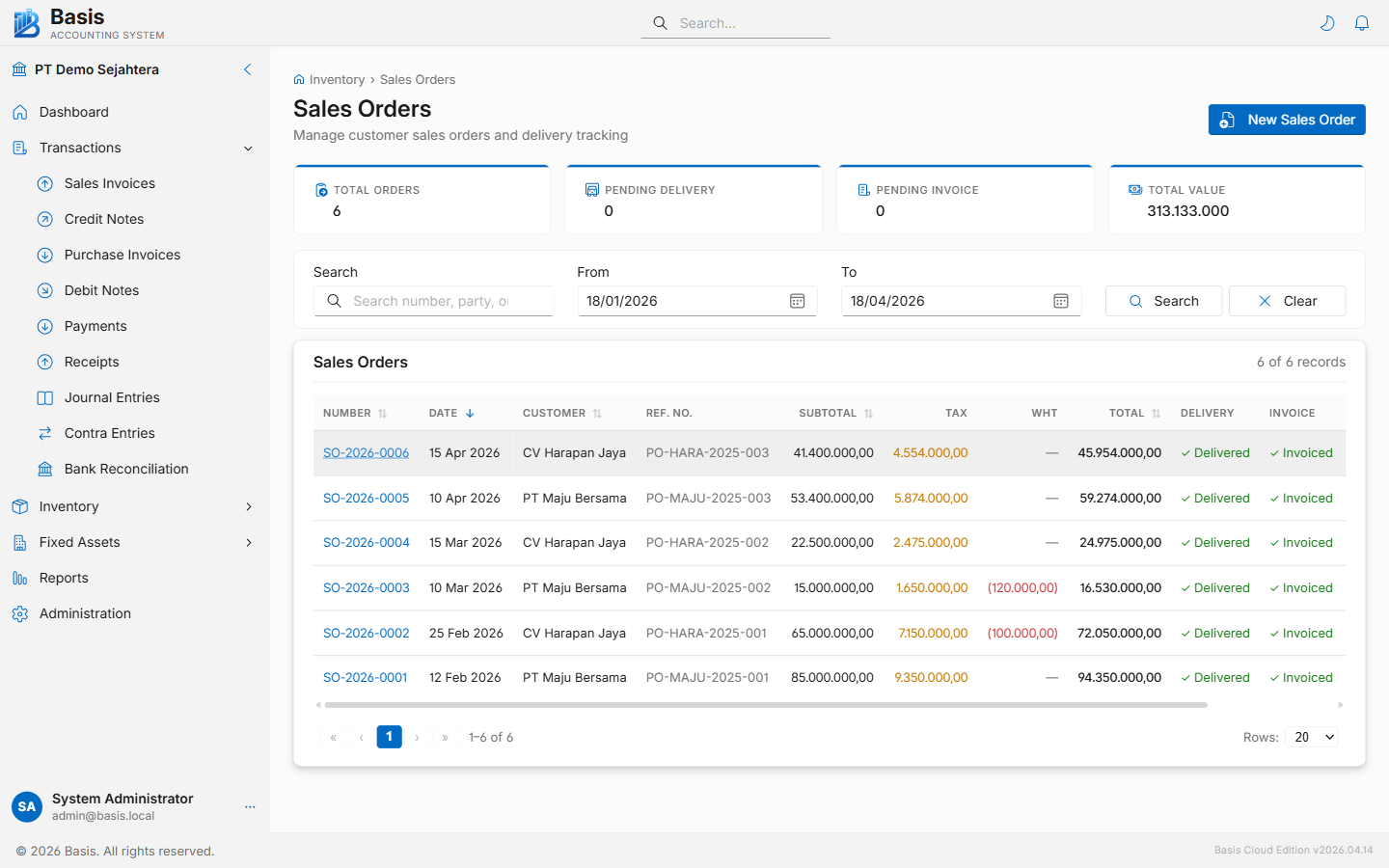
Creating a Sales Order
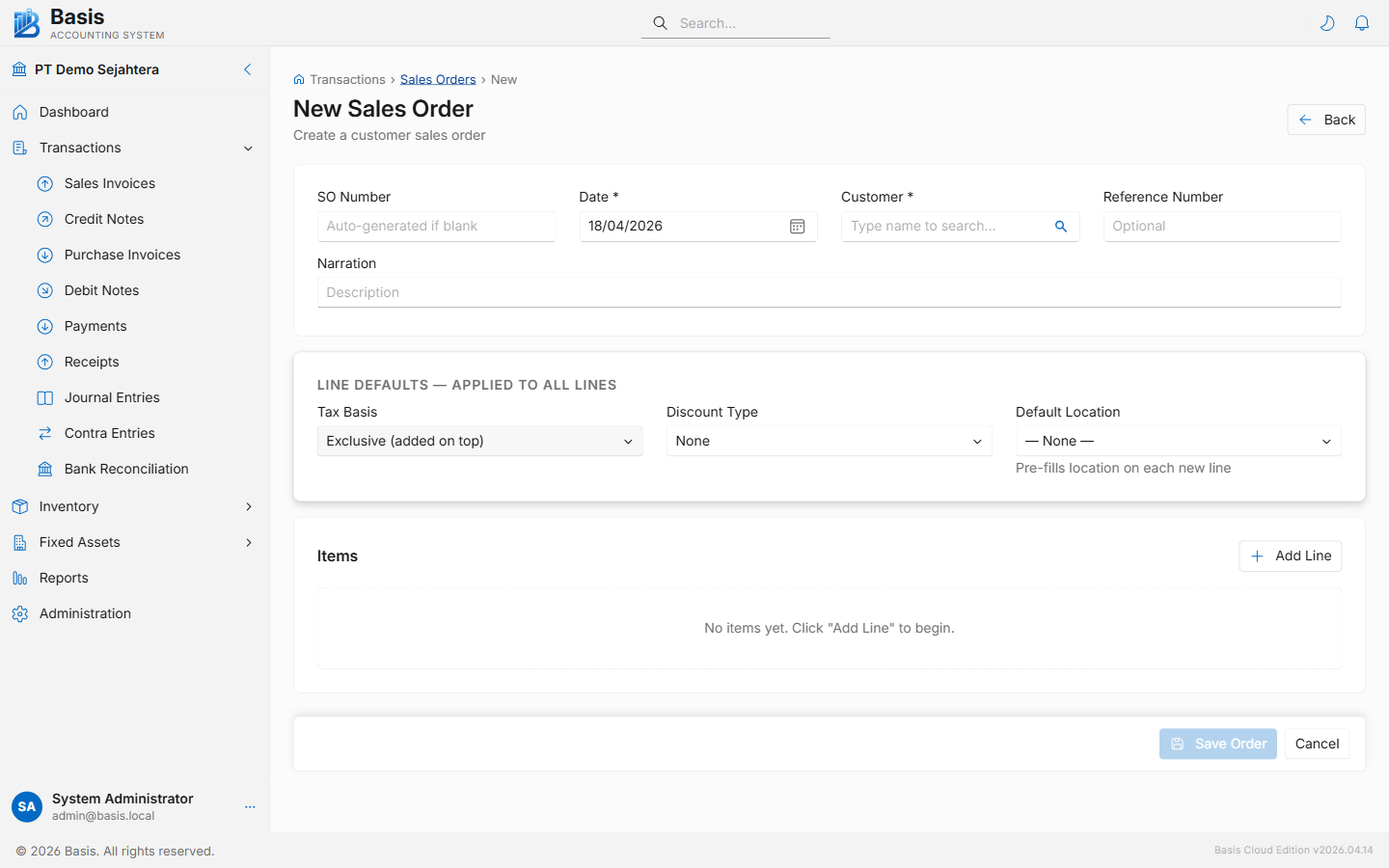
Go to Inventory → Sales Orders, then click New.
- Select the Customer (autocomplete by name or code).
- Set the Order Date and optionally a Delivery Date.
- Add line items: search for an Item, enter Qty, confirm Unit Price and Tax. Price auto-fills from the item's selling price or assigned Price Level.
- Apply a Discount % per line if needed.
- Optionally assign a Salesman, Project, Currency, or per-line Location.
- Add a Narration and click Save.
Header fields
| Field | Status | Notes |
|---|---|---|
| SO Number | Auto | Auto-generated from the SO voucher series. |
| Date | Required | Order date. |
| Customer | Required | Must be a party with Customer type. |
| Delivery Date | Optional | Expected delivery date — informational only, no automatic action. |
| Reference | Optional | Customer PO number or external order reference. |
| Salesman | Optional | Appears when the Salesman feature is enabled. |
| Currency | Optional | Appears when Multi-Currency is enabled. |
| Project | Optional | Appears when Projects feature is enabled. |
| Narration | Optional | Internal notes about the order. |
Line fields
| Field | Status | Notes |
|---|---|---|
| Item | Required | Search by item code or name. |
| Description | Optional | Auto-fills from item. Can be overridden per line. |
| Qty | Required | Ordered quantity. Delivery and invoice tracking compare against this value. |
| Unit | Optional | Auto-fills from item's default unit. |
| Unit Price | Required | Selling price — auto-fills from item or price level. |
| Discount % | Optional | Line-level discount percentage. |
| Tax | Optional | Tax category — auto-fills from item. |
| Location | Optional | Delivery-from warehouse. Appears when Multi-Location is enabled. |
A Sales Order does not post any GL entries or move stock. It is a commitment document only. Stock moves when a Delivery Note (GDN) is created against it; revenue is recorded when a Sales Invoice is raised.
Delivery & Invoice Status
The SO list shows two status columns: Delivery Status (Not Delivered / Partial / Fully Delivered) and Invoice Status (Not Invoiced / Partial / Fully Invoiced). Both update automatically as GDNs and Sales Invoices reference the SO.
Related
- Delivery Notes (GDN) — fulfill the order and move stock
- Sales Invoices — bill the customer against the SO
- Purchase Orders — the purchase-side mirror