 Basis
Basis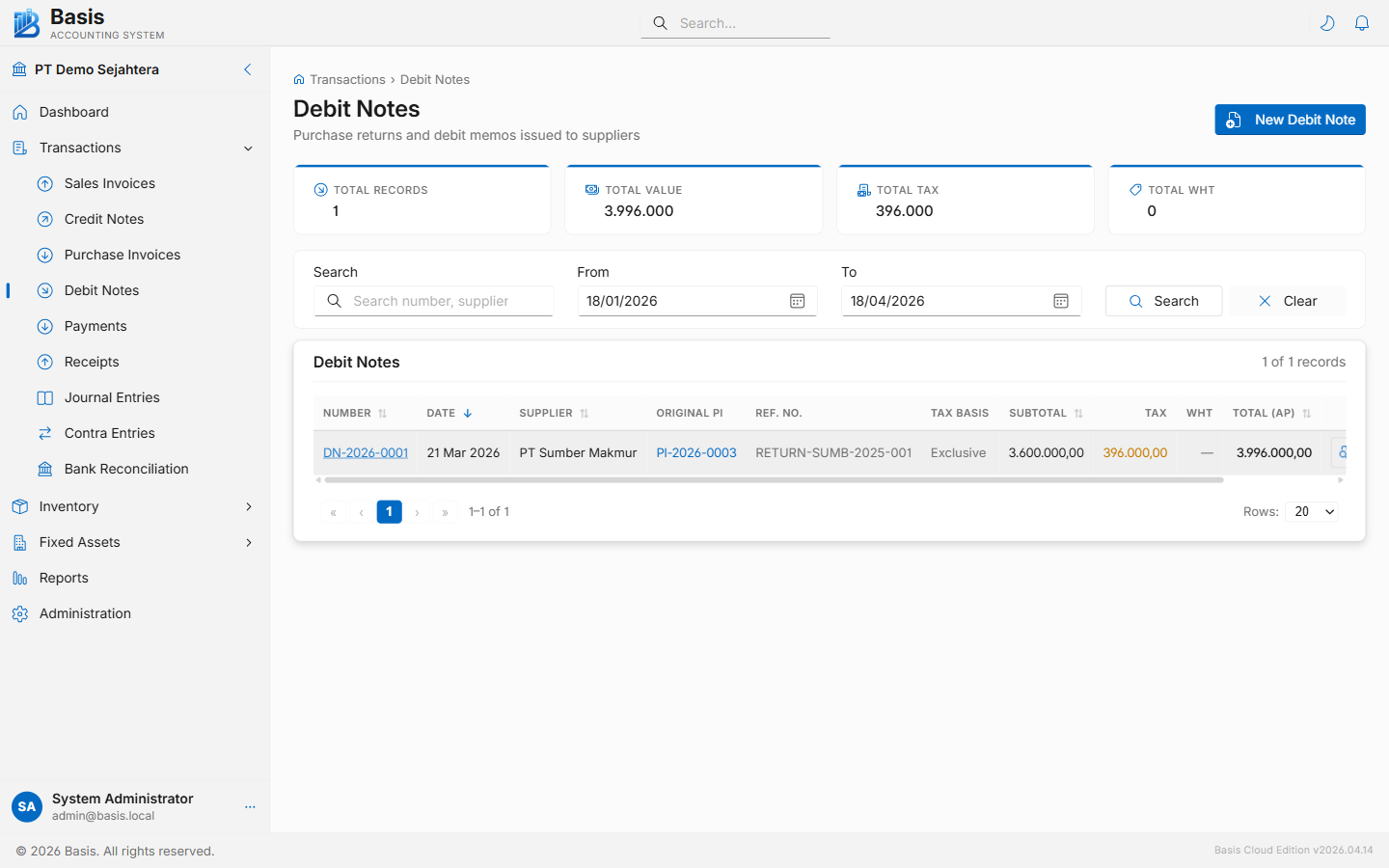
Creating a Debit Note
Go to Transactions → Debit Notes, then click New.
- Select the Supplier. Only suppliers with existing Purchase Invoices are relevant.
- Select the Purchase Invoice to reverse — the dropdown shows open bills for that supplier. Lines auto-fill.
- Enter the Return Qty for each line — only items being returned. Set 0 to exclude a line.
- Set the Date of the return.
- Add a Narration with the reason (e.g., "Wrong items delivered — returning 10 units").
- Click Save. The supplier's AP balance decreases immediately.
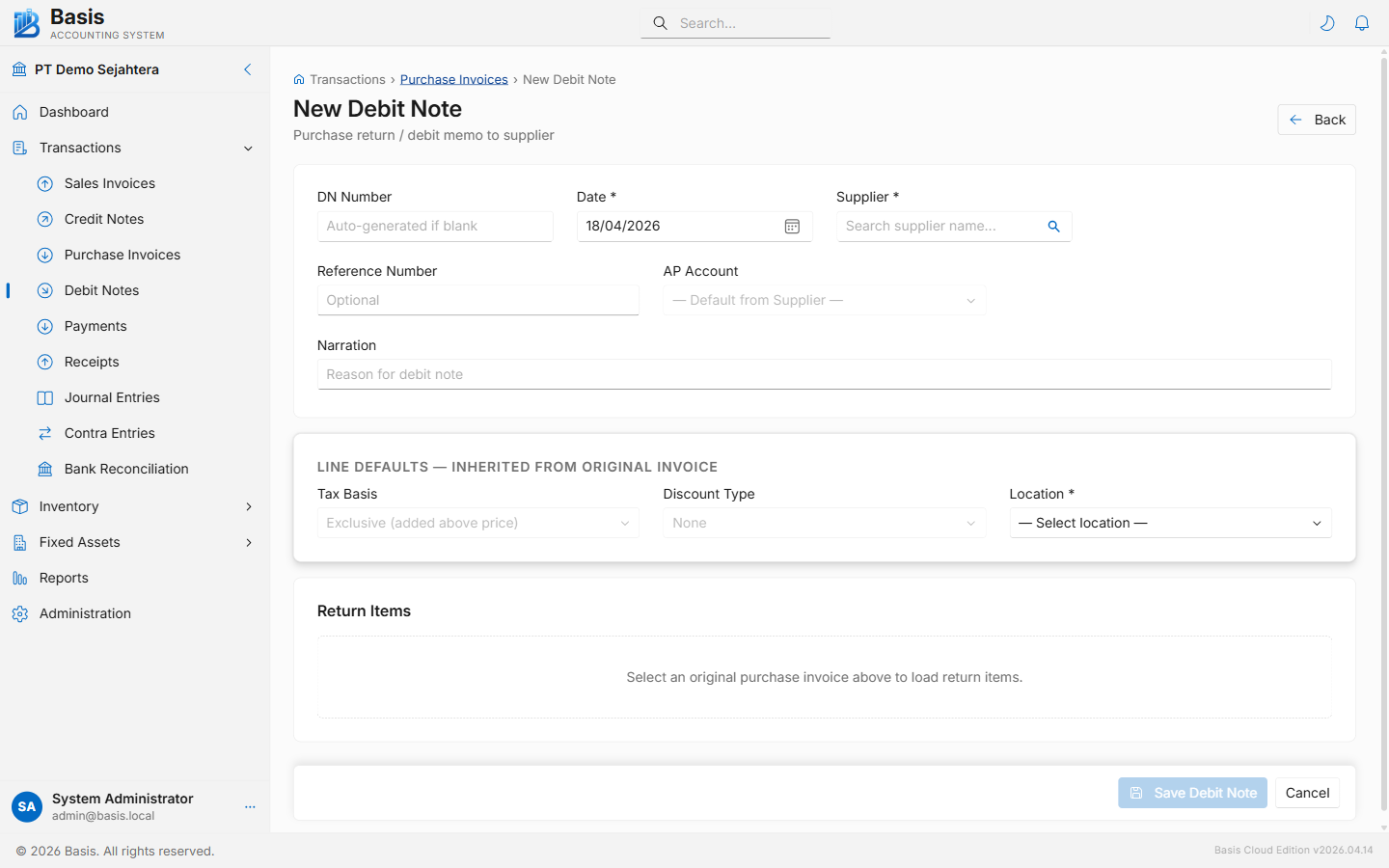
Header fields
| Field | Status | Notes |
|---|---|---|
| Debit Note Number | Auto | Auto-generated from the DN voucher series. |
| Date | Required | Date of the return/correction. |
| Supplier | Required | Must be selected first to reveal the invoice dropdown. |
| Purchase Invoice | Required | The bill being corrected. Lines auto-fill once selected. |
| Reference | Optional | Supplier's Return Merchandise Authorization (RMA) or your internal ref. |
| Narration | Optional | Reason for the debit note — printed on the document. |
For inventory-tracked items, the returned quantities are deducted from stock automatically.
GL Impact
| Account | Debit | Credit |
|---|---|---|
| Accounts Payable (AP) | Total debit amount | — |
| Expense / Inventory Account (per line) | — | Line amount excl. tax |
| Tax Receivable (VAT Input) | — | Tax reversal |
| Inventory Asset (stock items) | — | Inventory reduced at WAC |
Related
- Purchase Invoices — the document being corrected
- Payments — if issuing a cash refund to supplier instead
- Credit Notes — the sales-side equivalent