 Basis
Basis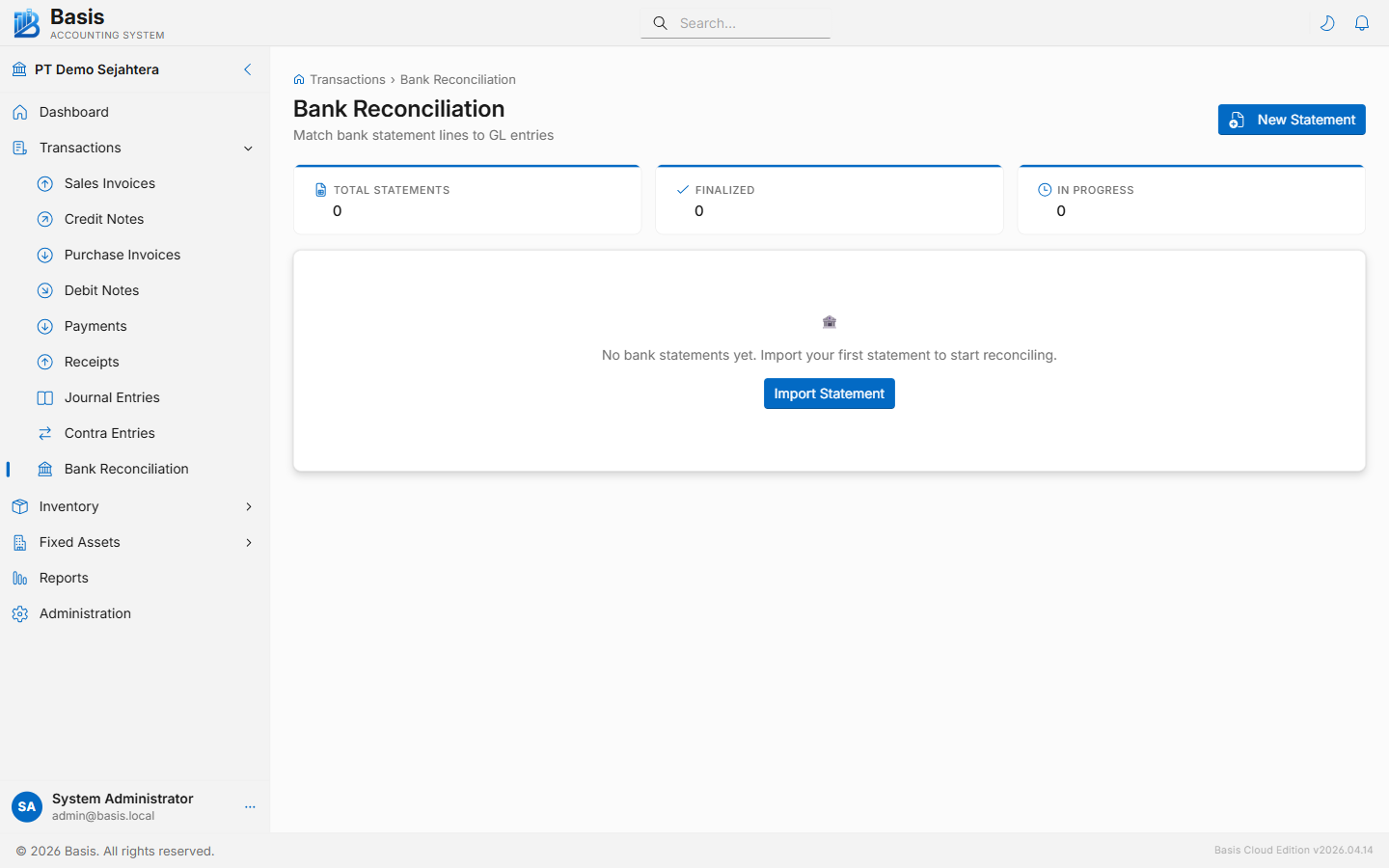
Reconciliation Process
The process has two stages: Import the bank statement, then Match each statement line to a GL entry.
Step 1 — Import a Bank Statement
Click New / Import Statement on the Bank Reconciliation list page.
- Select the Bank / Cash Account to reconcile (only Cash and Bank sub-type accounts are shown).
- Enter a Statement Reference (e.g., "BCA January 2026") to identify this reconciliation.
- Set the From Date and To Date covering the statement period.
- Enter the Opening Balance (the balance at the start of the period from your bank statement).
- Enter the Closing Balance (the balance at the end of the period from your bank statement).
- Add statement lines: click Add Line and enter each transaction's date, description, and amount (positive = deposit, negative = withdrawal).
- Click Import Statement. You are taken directly to the matching work page.
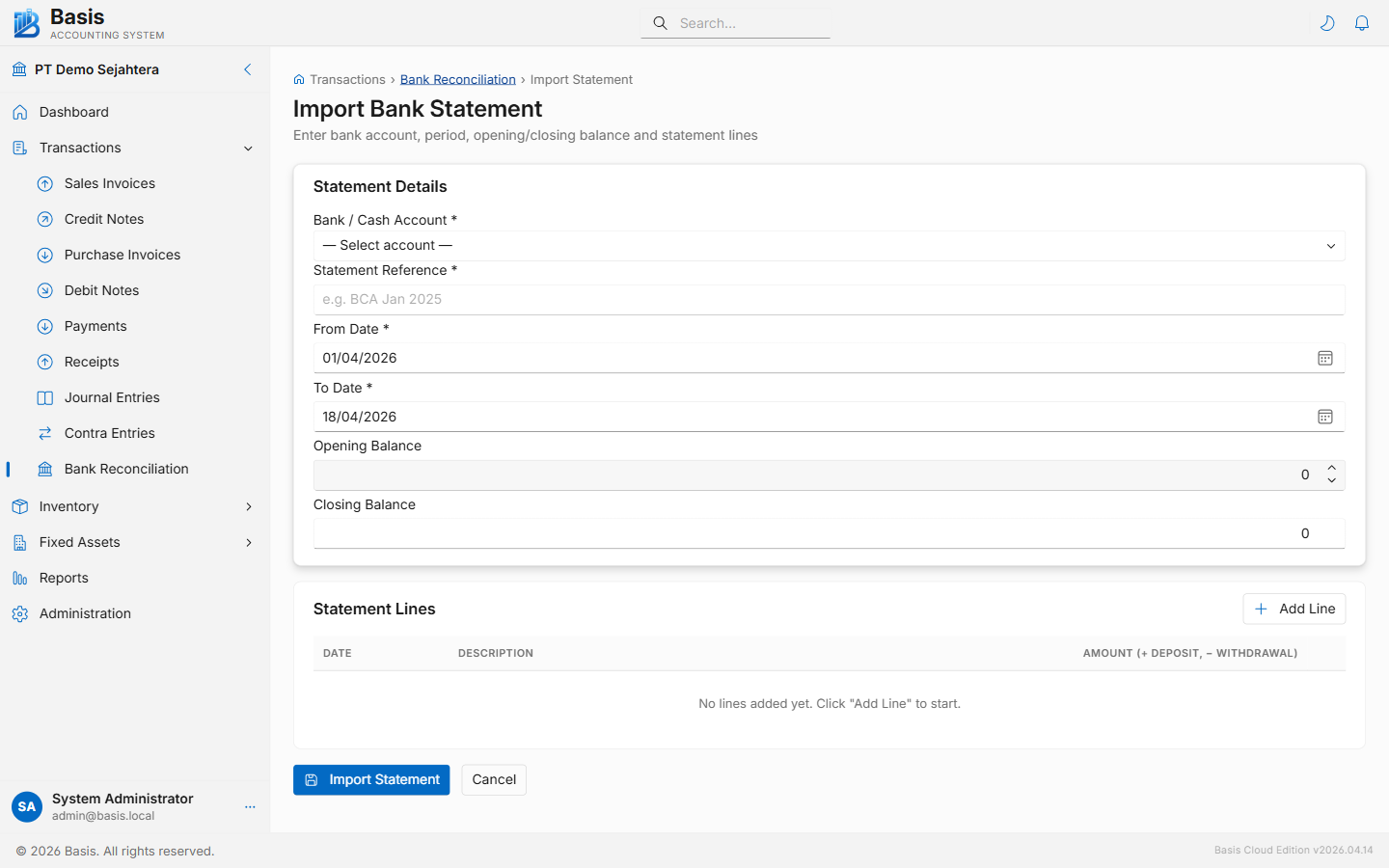
Import fields
| Field | Status | Notes |
|---|---|---|
| Bank / Cash Account | Required | The GL account matching your bank account. Only Cash and Bank accounts shown. |
| Statement Reference | Required | A unique name for this statement import, e.g., "BCA Jan 2026". |
| From Date / To Date | Required | The period covered by the bank statement. |
| Opening Balance | Optional | Balance at start of period per bank statement. Used to compute the difference. |
| Closing Balance | Optional | Balance at end of period per bank statement. |
| Statement Lines | Optional | Individual transactions from the statement. Amount: positive = inflow, negative = outflow. |
Step 2 — Match on the Work Page
The work page shows the bank statement lines on the left and unreconciled GL entries on the right. Four stat cards at the top show Opening Balance, Statement Movement, Closing Balance, and the current Difference.
- Click a statement line on the left panel to select it (highlighted in blue).
- Click the matching GL entry on the right panel. The pair is matched and both items are marked as reconciled.
- Continue matching until all statement lines are paired.
- The Difference card shows: Closing Balance − Opening Balance − net GL movement. When this reaches zero, the Finalize button becomes active.
- Click Finalize to lock the reconciliation. Finalized statements cannot be edited.
docs/bank-reconciliation-work.png
If a GL entry doesn't match any statement line (timing difference — e.g., a cheque issued but not yet cleared), leave it unmatched. It will appear as an outstanding item on future reconciliations.
Once a reconciliation is finalized it is locked. If you need to correct an error, create a new reconciliation for the same account covering the corrected period.
Related
- Payments — GL entries that appear on the right panel as outflows
- Receipts — GL entries that appear on the right panel as inflows
- Contra Entries — inter-bank transfers visible in reconciliation
- Journal Entries — any direct bank account adjustments