 Basis
Basis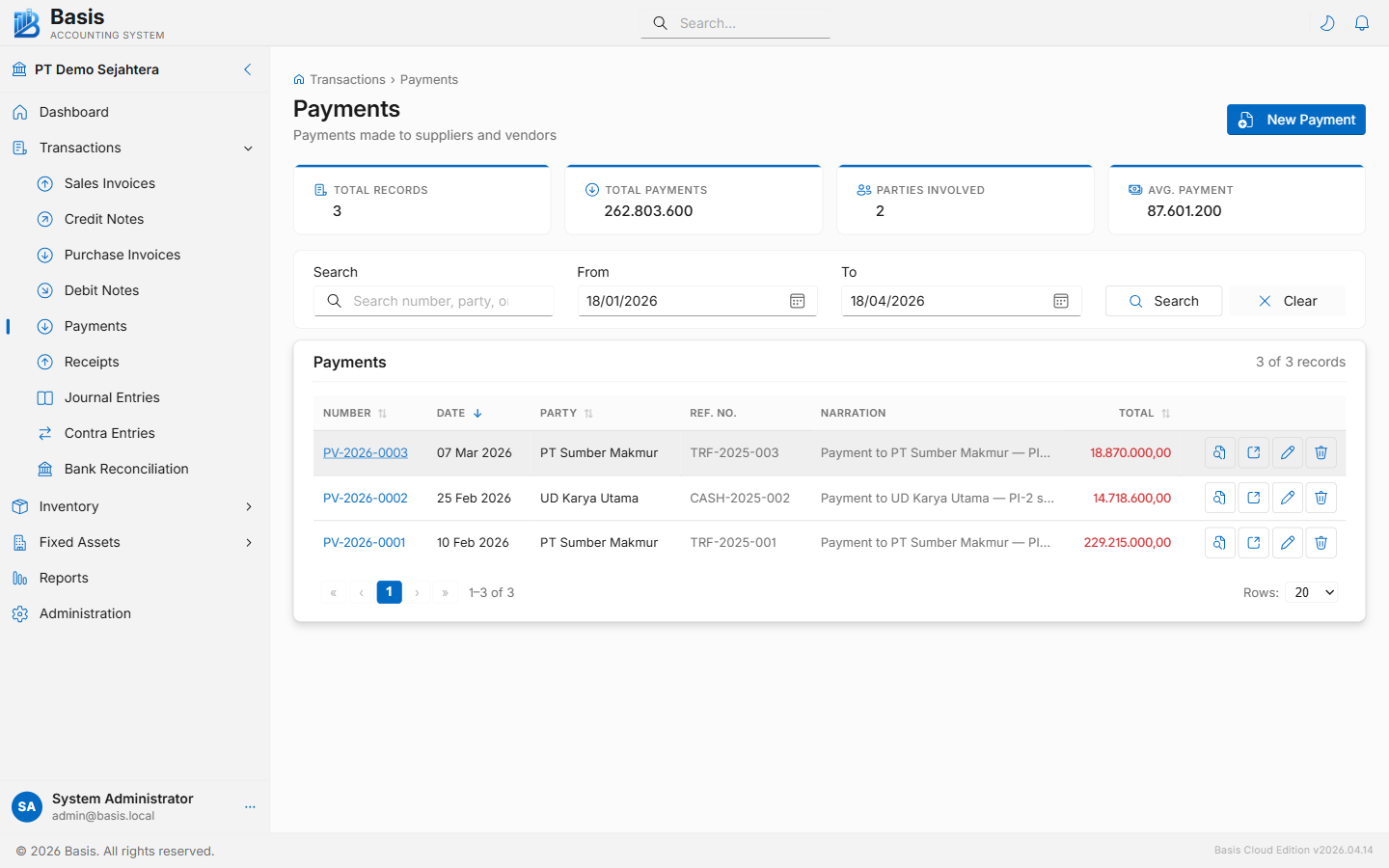
Creating a Payment
Go to Transactions → Payments, then click New.
- Select the Cash / Bank Account the money will be paid from (required).
- Set the Date of the payment.
- Optionally select a Party (supplier or payee). Once selected, outstanding Purchase Invoices for that party appear so you can allocate the payment.
- Add one or more offset lines: choose the account (AP, expense, or other) and enter the amount. For AP invoice settlement, select the invoice from the dropdown — the amount auto-fills from the outstanding balance.
- Optionally enter a Reference Number (cheque number, transfer ID, etc.).
- Add a Narration describing the payment, then click Save.
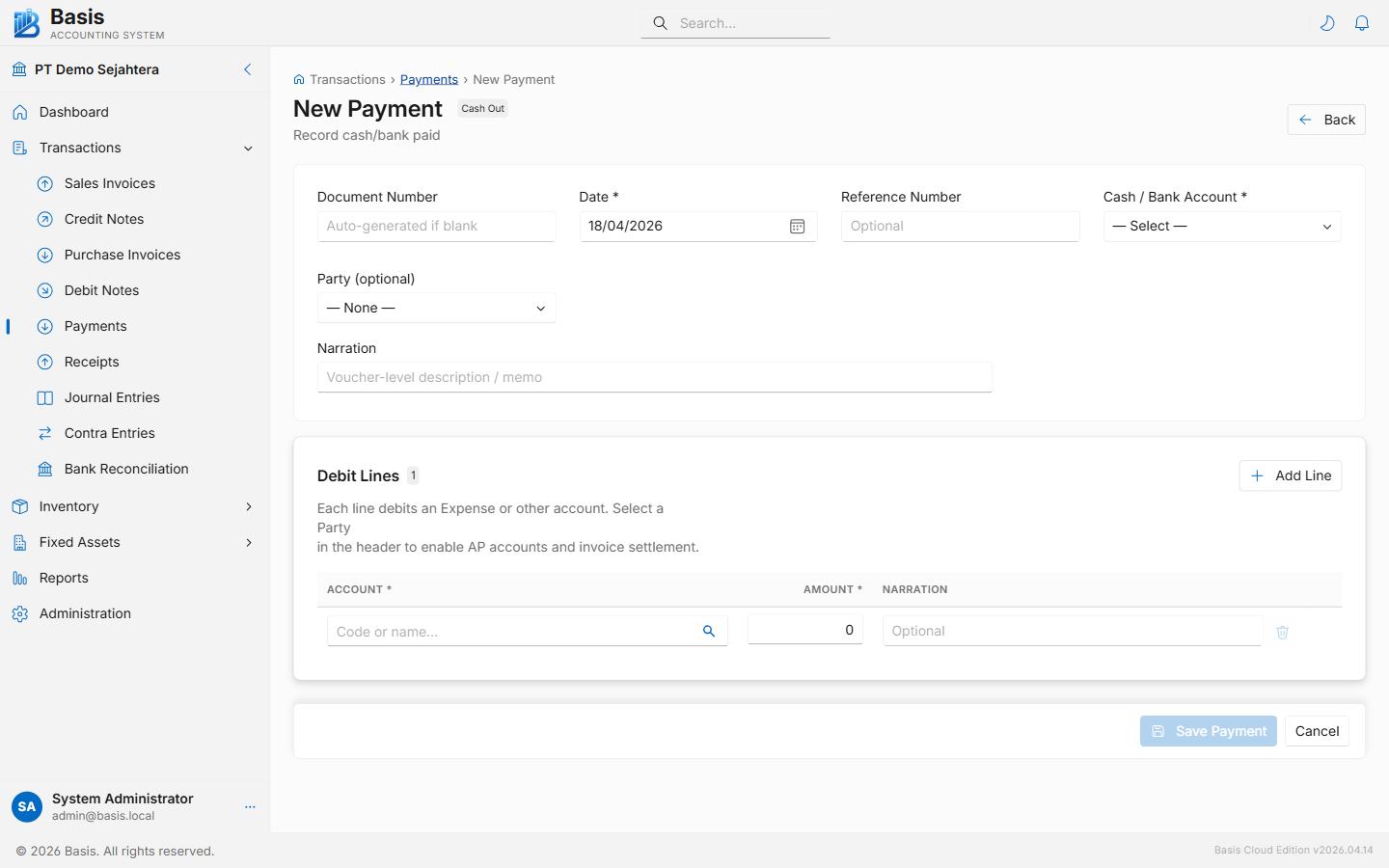
Header fields
| Field | Status | Notes |
|---|---|---|
| Document Number | Auto | Auto-generated from the PV voucher series. Can be overridden. |
| Date | Required | Date the payment is made. Blocked if the period is locked. |
| Reference Number | Optional | Cheque number, bank transfer ID, or other external reference. |
| Cash / Bank Account | Required | The account money is paid from. Only Cash and Bank accounts are shown. |
| Party | Optional | Select a supplier to load outstanding invoices for AP settlement. Leave blank for direct expense payments. |
| Currency | Optional | Defaults to base currency. Available when Multi-Currency is enabled. |
| Narration | Optional | Description of the payment — printed on the payment voucher. |
Offset line fields
| Field | Status | Notes |
|---|---|---|
| Account | Required | The account being debited: Accounts Payable, Expense, Prepaid, or other asset accounts. |
| Invoice | Optional | Appears when Party is selected. Links this line to a specific outstanding Purchase Invoice. |
| Narration | Optional | Per-line description. Useful for splitting a payment across multiple invoices. |
| Amount | Required | Payment amount for this line. Auto-fills from outstanding invoice balance if an invoice is selected. |
| WHT % | Optional | Withholding tax percentage. WHT amount is calculated automatically and reduces the net payment. |
Partial payment: you can pay less than the full invoice amount. The remaining balance stays open on the Purchase Invoice and appears again on the next payment form.
Editing & Deleting
Open any payment from the list and click Edit (pencil icon) or Delete.
Immutable vouchers: Every edit or delete first archives the original voucher as a full JSON snapshot in the Audit Trail, then recreates it. The voucher ID is preserved on edit. This means all history is retained and recoverable.
Viewing & Printing
From the payment detail page, click Print / Preview to open the printable payment voucher. The document shows the header fields, all offset lines with amounts, and the total paid.
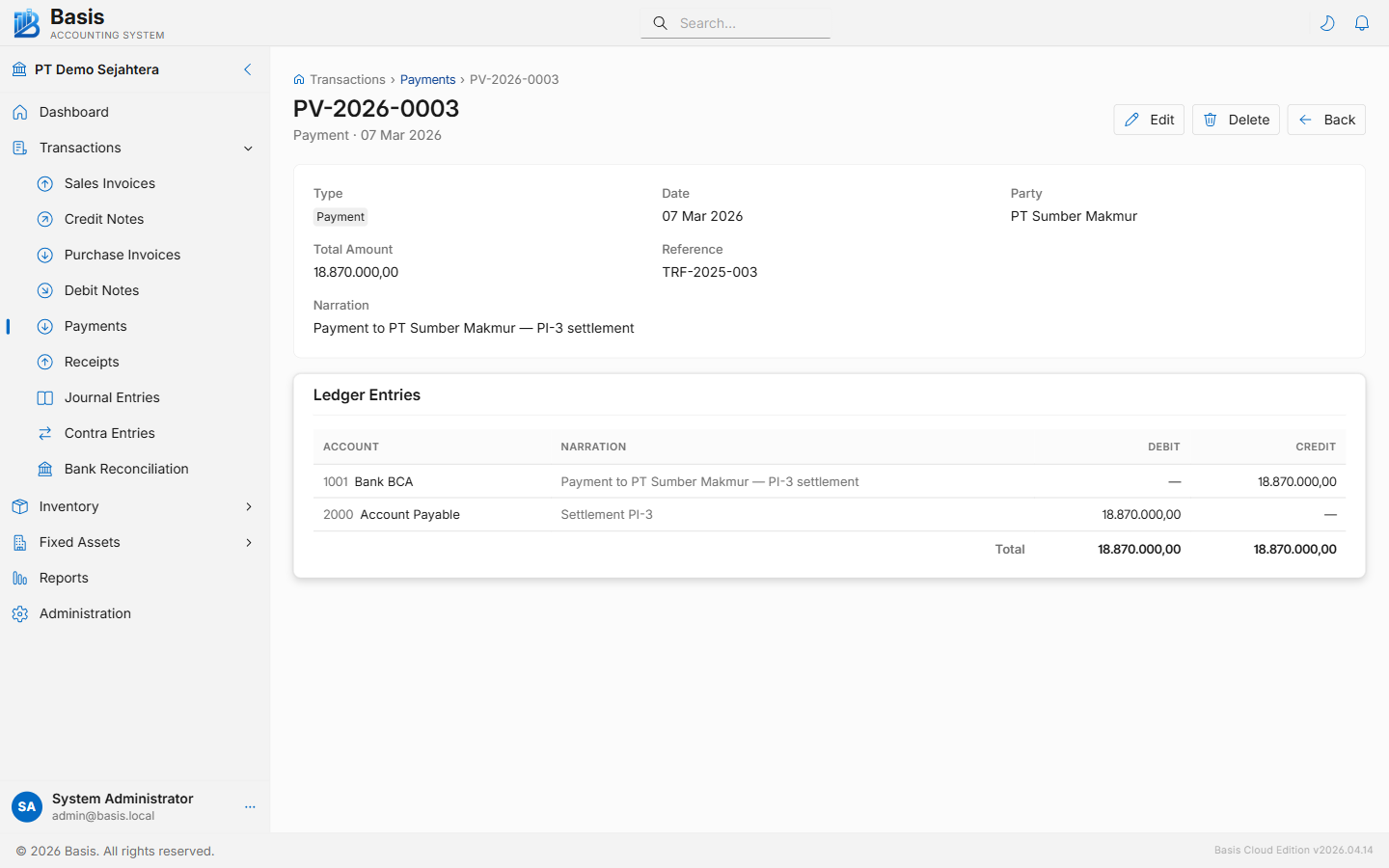
GL Impact
| Account | Debit | Credit |
|---|---|---|
| Accounts Payable / Expense Account (per line) | Line amount | — |
| WHT Payable (if WHT applied) | WHT amount withheld | — |
| Cash / Bank Account | — | Total net payment |
Related
- Purchase Invoices — the bills being paid
- Receipts — the mirror: cash coming in from customers
- Contra Entries — to transfer funds between two cash/bank accounts
- Bank Reconciliation — match payments to your bank statement