 Basis
BasisMigration Overview
Basis does not import historical transaction history. The recommended migration path is:
- Set your cutover date (start of month or financial year).
- Import or manually create Chart of Accounts.
- Import or manually create Parties (customers & suppliers).
- Import or manually create Items (if using inventory).
- Enter Opening Balances — GL accounts, outstanding AR/AP invoices, and inventory stock as of the cutover date.
- Start recording new transactions in Basis from the cutover date.
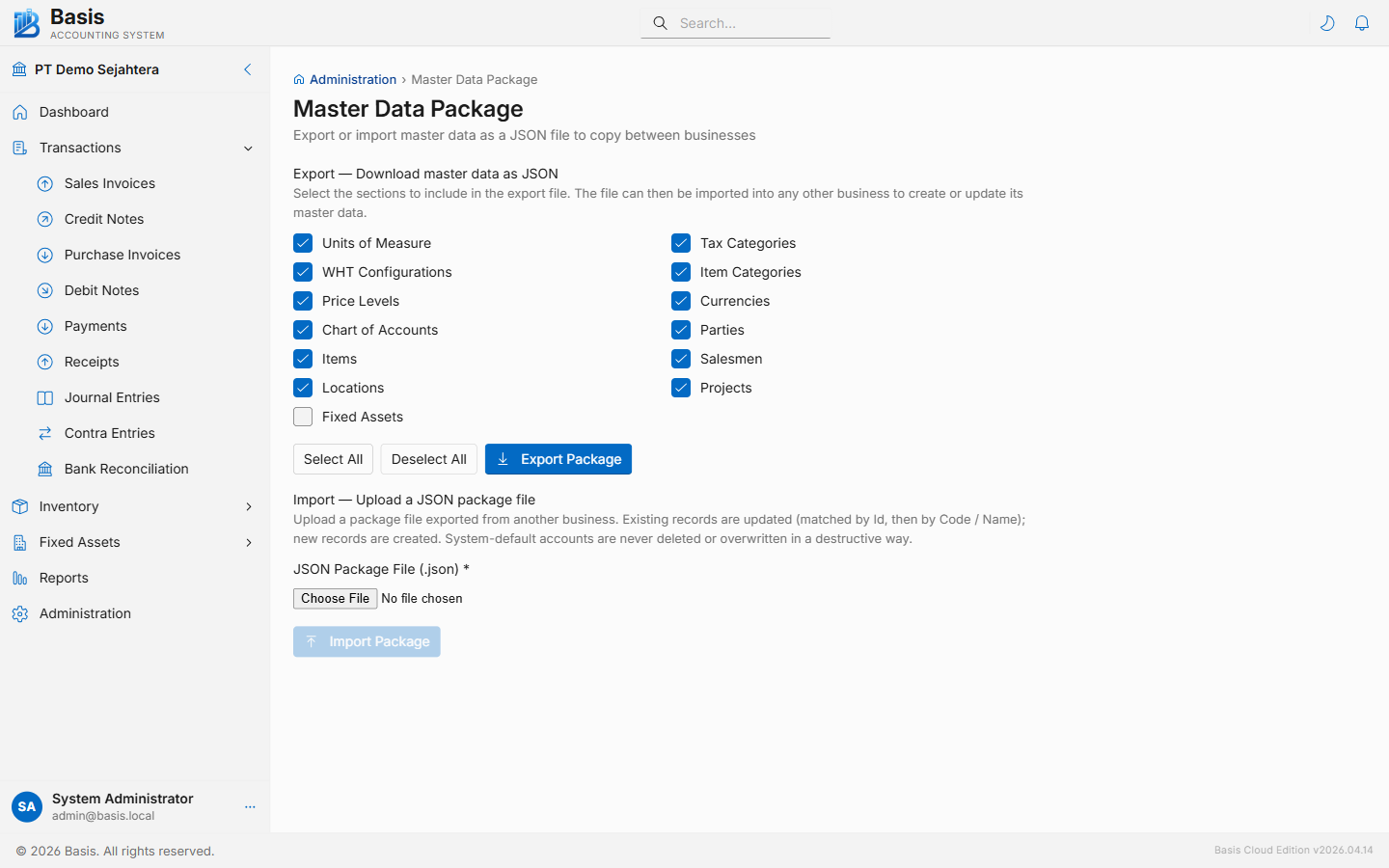
Step 1 — Import Master Data
Basis supports CSV import for three master data types. Download the CSV template from each import screen — it includes all columns with example data and column descriptions.
Chart of Accounts
Route: /admin/chart-of-accounts → Import CSV button.
If your existing system uses a similar account structure, export it and reformat to match the Basis template. Otherwise, use the built-in default chart (installed when you create the business) and add or rename accounts manually.
CSV columns: Code, Name, AccountType, AccountSubType, IsActive.
Parties (Customers & Suppliers)
Route: /master-data/parties → Import CSV button.
CSV columns: Name (required), PartyType (Customer / Supplier / Both), TaxNumber, Email, Phone, Address, CreditLimit, PaymentTermDays.
Items
Route: /master-data/items → Import CSV button.
CSV columns: Code, Name (required), ItemType (Goods / Service), Unit, Category, SalePrice, PurchasePrice, TaxRate, TrackInventory.
YYYY-MM-DD format. Number fields are plain numbers — no currency symbols or thousand separators. Boolean fields: true / false.
Step 2 — Enter Opening Balances
After master data is in place, go to Settings → Opening Balances and enter:
- GL Accounts tab — your trial balance as of the cutover date (debit/credit for every account with a non-zero balance).
- AR/AP Outstanding Bills tab — each unpaid sales invoice and purchase invoice that existed before the cutover date, with the remaining outstanding amount.
- Inventory Stock tab — opening quantity and unit cost per item per location.
See the Opening Balances guide for full field-by-field instructions.
Step 3 — Verify
After saving opening balances, run these reports to confirm accuracy:
- Trial Balance — should match your source system's trial balance as of the cutover date.
- AR Aging — should list all outstanding customer invoices you entered.
- AP Aging — should list all outstanding supplier invoices you entered.
- Stock Balance — should match your physical stock count at cutover.
Historical Transaction History
Basis does not import historical transactions from other systems. Your old system remains the archive for history before the cutover date. Basis starts fresh from the opening balance date.
If you need to reference a historical invoice from your old system, keep that system accessible or export its data to PDF/Excel before decommissioning.
Backup Before Migrating
For self-hosted deployments, create a backup of the data directory before starting import:
cp -r /data /data-backup-before-migrationThis lets you restore to a clean state if anything needs to be redone.
Related
- Chart of Accounts — create accounts before entering GL balances
- Parties — create customers/suppliers before entering AR/AP bills
- Items — create items before entering inventory stock
- Opening Balances — detailed field-by-field guide
- Reports — Trial Balance, AR Aging, AP Aging, Stock Balance