 Basis
Basis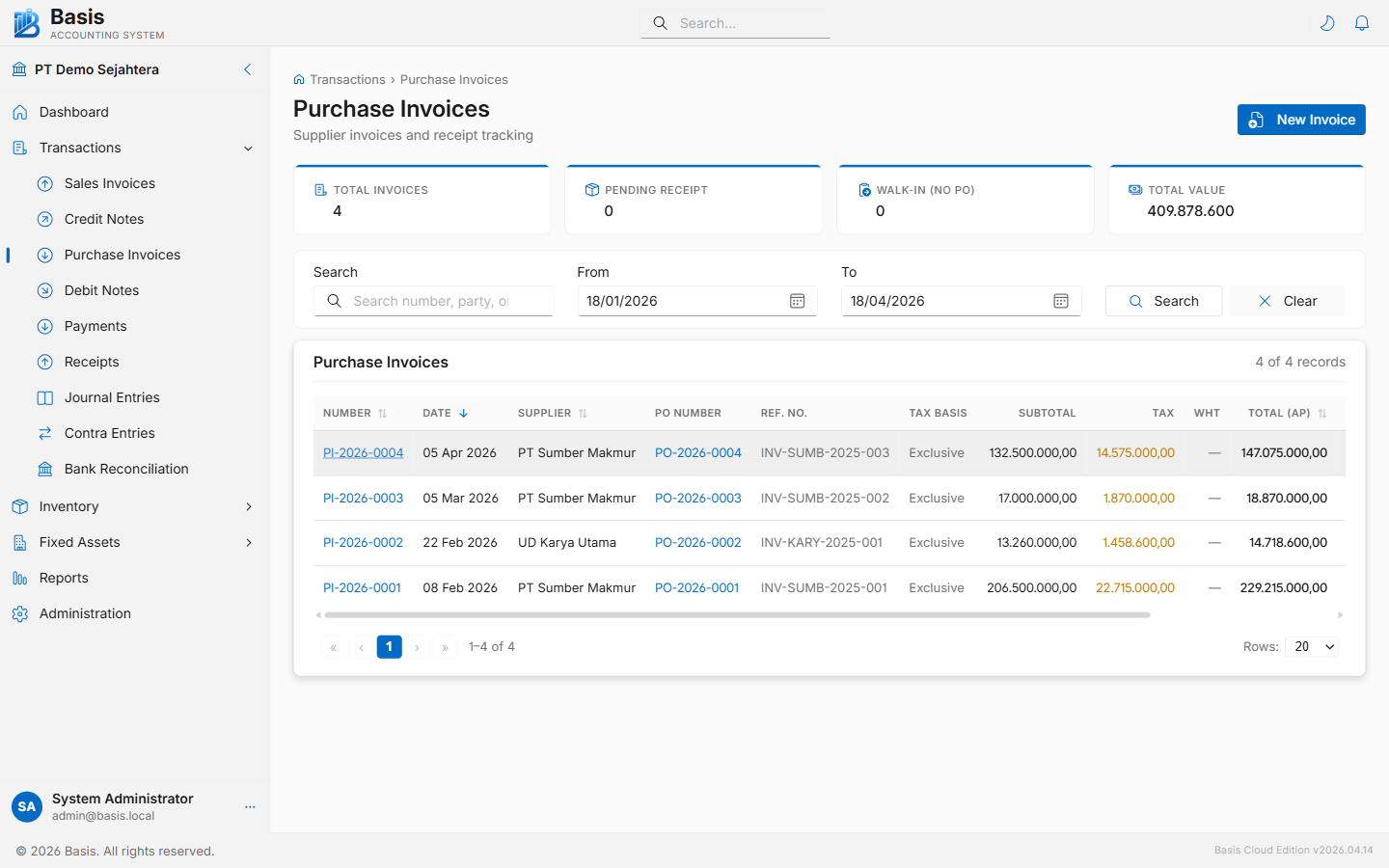
Creating a Purchase Invoice
Go to Transactions → Purchase Invoices, then click New.
- Select the Supplier. The supplier's current AP balance appears. Leave blank for a walk-in purchase.
- Set the Invoice Date. Optionally set a Due Date for your payment deadline.
- Enter the supplier's own bill number in the Reference field — this is your supplier's invoice number.
- If linked to a Purchase Order, select it from the Purchase Order dropdown — lines auto-fill from the PO.
- Add or review line items: Item, Description, Qty, Unit Price, and Tax. Input Tax (VAT In) is applied from the item's tax category.
- Click Save. The bill posts immediately to the GL.
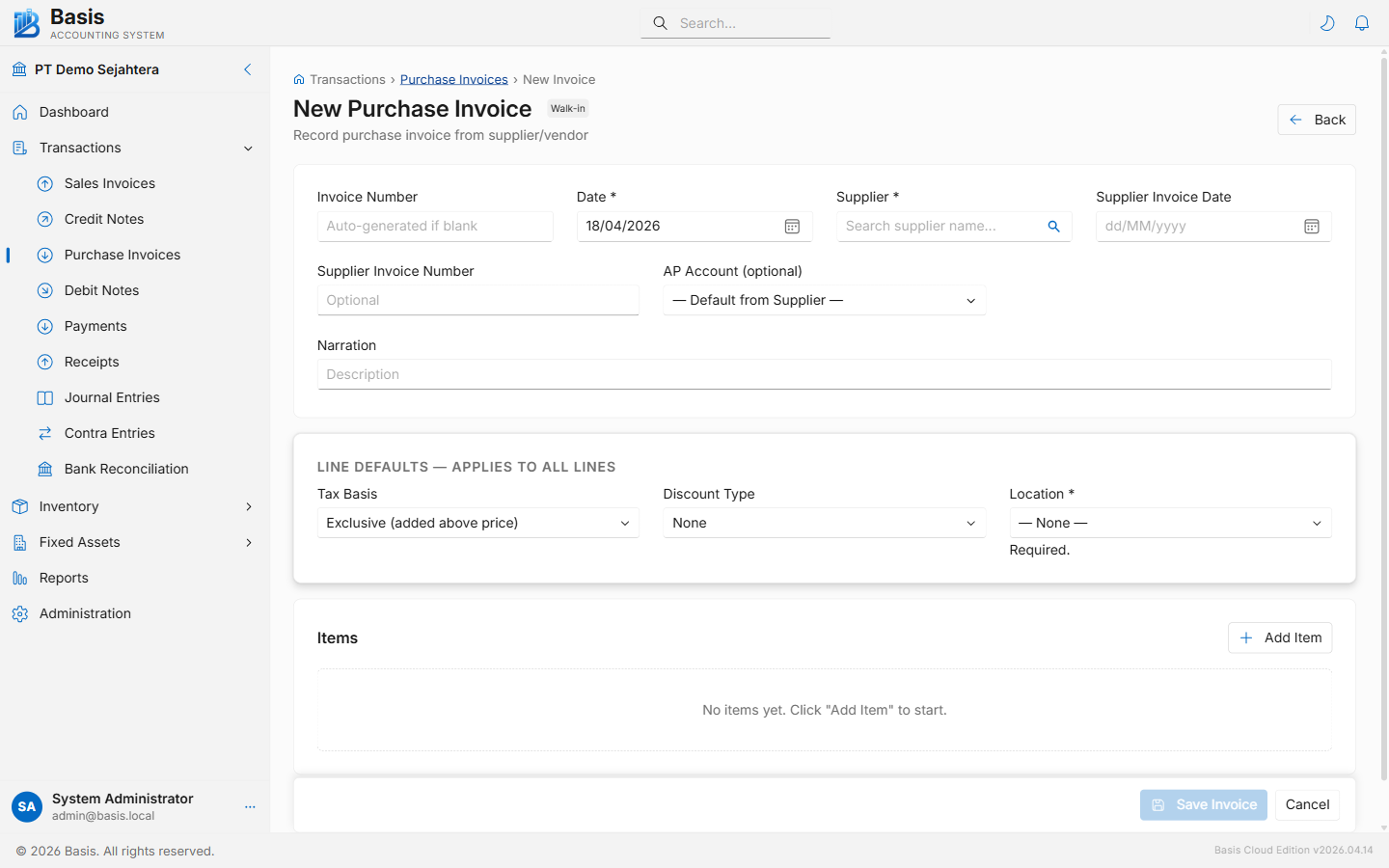
Header fields
| Field | Status | Notes |
|---|---|---|
| Invoice Number | Auto | Auto-generated. Can be overridden to match your internal numbering. |
| Date | Required | Bill date. Blocked if the accounting period is locked. |
| Supplier | Optional | Select from Parties. Shows current AP balance. Leave blank for walk-in. |
| Due Date | Optional | Payment deadline. Used in the AP Aging report. |
| Purchase Order | Optional | Links to an open PO for the selected supplier. Lines auto-fill from the PO. |
| Reference | Optional | Supplier's own invoice number — important for reconciliation. |
| AP Account | Optional | Defaults to the supplier's AP account. |
| Currency | Optional | Visible when Multi-Currency is enabled. Locked if linked to a PO. |
| Narration | Optional | Internal note — not printed. |
Line item fields
| Field | Status | Notes |
|---|---|---|
| Item | Optional | Select from Items list. Auto-fills description, unit, and cost price. |
| Description | Required | Free text description of the purchased good or service. |
| Qty | Required | Quantity. Increases inventory for stock-tracked items. |
| Unit | Optional | Unit of measure. Auto from item. |
| Unit Cost | Required | Cost per unit. Defaults from item's last purchase price. |
| Tax (Input) | Optional | VAT Input tax. Auto from item's tax category. |
| WHT | Optional | Withholding tax — withheld from the payment to the supplier. |
| Expense Account | Optional | Overrides the item's default account for this line only. |
Billing from a Purchase Order
Select the supplier first, then choose the Purchase Order. Lines auto-fill with PO quantities and costs. Adjust quantities for partial billing. The PO status updates to Partially Invoiced or Fully Invoiced automatically.
Multiple partial bills can be created against one Purchase Order until it is fully invoiced.
Editing and Deleting
Vouchers are immutable. Every edit or delete archives the original JSON snapshot first. Deleted bills can be restored from the Audit Trail.
Preview and Printing
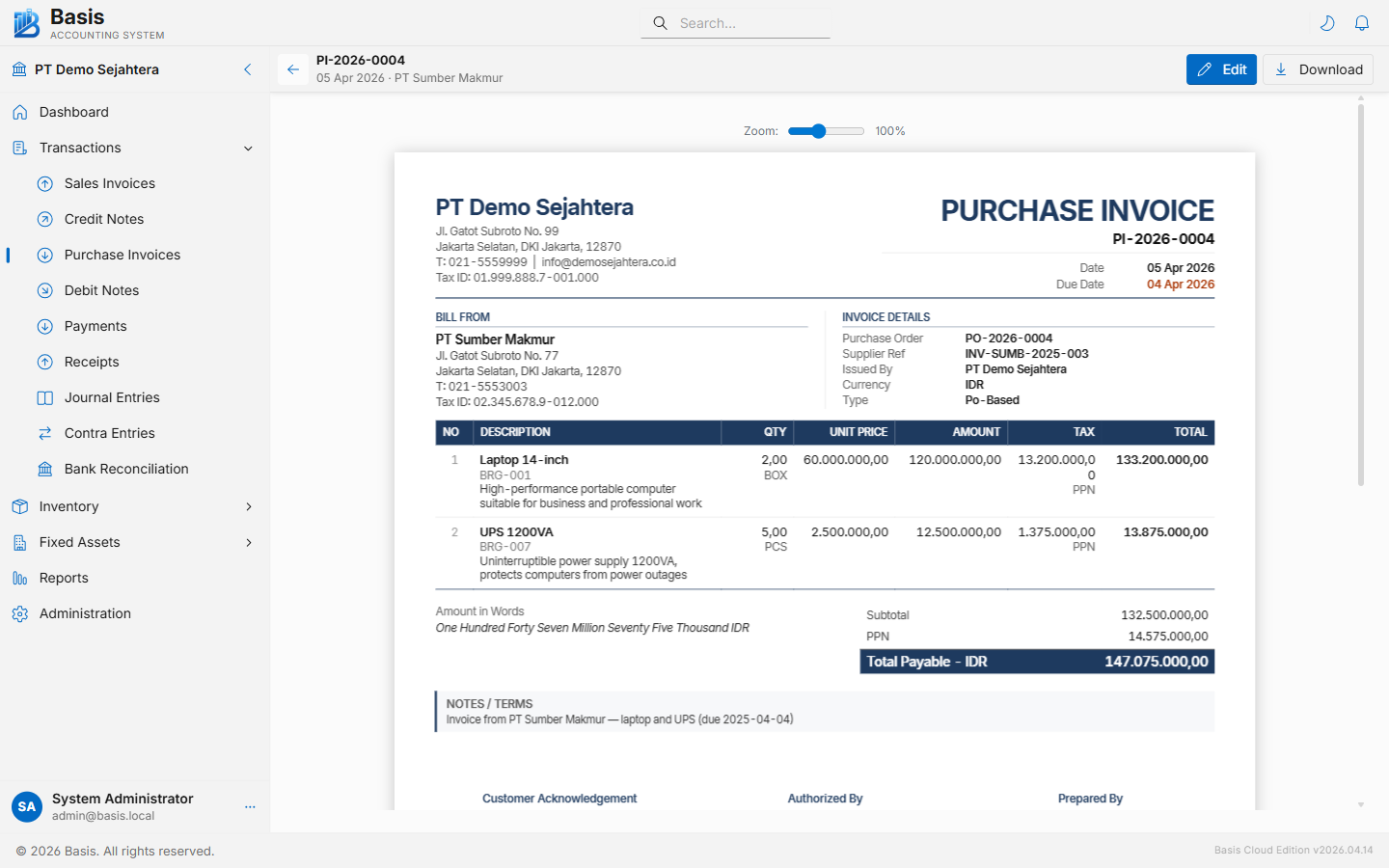
Open any bill and click Preview to view the formatted document. You can print or download as PDF. Emailing the bill back to the supplier is also supported if Email Settings is configured.
GL Impact
| Account | Debit | Credit |
|---|---|---|
| Expense / Inventory Account (per line) | Line amount excl. tax | — |
| Tax Receivable (VAT Input) | Tax amount | — |
| Accounts Payable (AP) | — | Bill total incl. tax |
| WHT Payable (if WHT applied) | — | WHT amount |
| Inventory Asset (stock items) | Purchase cost at WAC | — |
Related
- Debit Notes — return goods or correct a Purchase Invoice
- Payments — pay the bill to the supplier
- Purchase Orders — create the PO before the bill
- AP Aging Report — see outstanding payables by age bucket