 Basis
Basis
Customer Portal is available on Server and Cloud editions only. The Customer Portal feature must also be enabled in Feature Settings.
How It Works
Each customer receives a unique portal access token (a secure URL). When they open the link, they see only their own documents — invoices, credit notes, and their statement of account — without needing to create an account or enter a password.
Tokens have an expiry period that you control. Once expired, the link shows "access denied" until a new token is generated. You can revoke a token at any time from the Tokens management page.
Portal Settings
On the Customer Portal settings page, configure the global portal behavior:
| Field | Notes |
|---|---|
| Enable Customer Portal | Master switch. When disabled, all portal links show "Portal not available" regardless of individual token status. |
| Token Expiry (days) | Number of days before a portal access token expires. Range 1–365. Default is typically 30 days. Tokens must be regenerated after expiry. |
| Show Sales Orders | If enabled, customers can view their Sales Orders on the portal in addition to invoices. |
| Show Credit Notes | If enabled, customers can view Credit Notes issued to them. |
| Show Statement of Account | If enabled, customers can view their running Statement of Account (AR aging). |
| Allow Customer Messages | If enabled, customers can leave comments or messages visible to your staff. |
| Welcome Message | Optional text shown at the top of the customer portal page. Max 500 characters. Use it for payment instructions or contact details. |
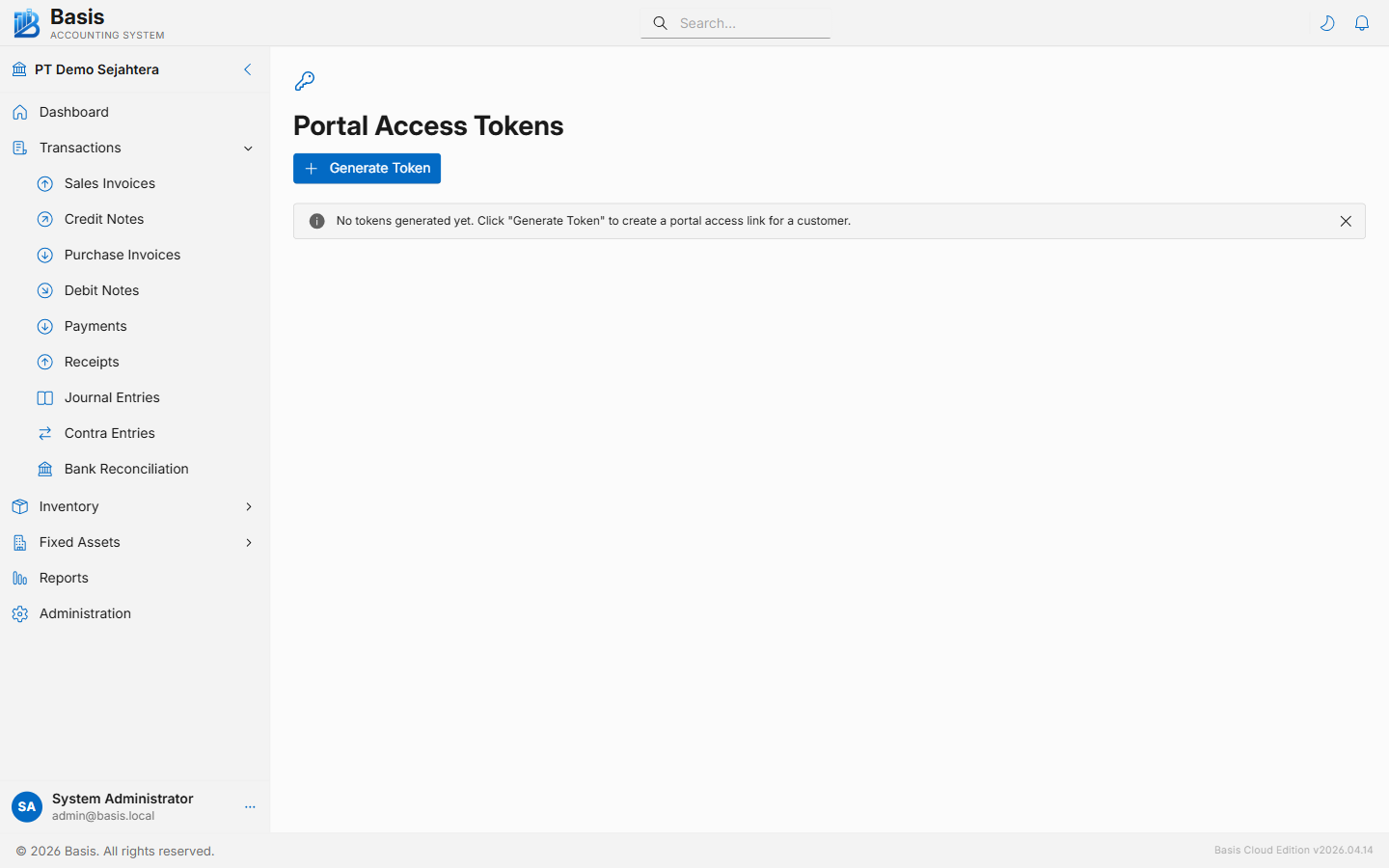
Managing Portal Access Tokens
Route: /settings/portal/tokens · Link: Manage Portal Access Tokens at the bottom of the Portal Settings page.
Each customer can have one active token at a time. From the Tokens page you can:
- Generate a new token for a customer — creates a secure URL valid for the configured expiry period.
- Copy the portal link to send to the customer via email or message.
- Revoke an existing token — immediately invalidates that customer's portal access.
- Regenerate a new token if the old one expired or was compromised.
Use the Email Services feature to send the portal link directly from Basis to the customer's email address. The portal URL can also be included in the email template for Sales Invoices so customers receive access with every new invoice.
Related
- Feature Settings — enable Customer Portal feature
- Email Settings — send portal links by email
- Parties — customer email address used for portal communications
- Sales Invoices — invoices visible in the customer portal